
What is a WhatsApp broadcast and how does it differ from a group and a forward?
A broadcast list is a group of contacts who each receive the same message individually. Each recipient sees it in their own private chat, rather than in a shared chat with the others. The text looks like a regular private message; members of the broadcast list cannot see each other, and each contact’s reply comes to you in your own chat, as if you had simply messaged them privately.
Broadcast messages are often confused with:
• A group
All members can see each other and their phone numbers. Any of them can reply to everyone at once. Broadcast messages in groups aren’t suitable for targeted communication, as frequent notifications annoy recipients.
• Forwarded message
The recipient sees the “Forwarded” label and immediately understands that the message isn’t addressed to them alone.
How to send a broadcast message in the WhatsApp app: step-by-step guide
The steps for creating a broadcast message are virtually the same on Android and iPhone. You cannot create a broadcast message from a computer: this feature is not supported in WhatsApp Web or in the Windows and Mac apps. This is a limitation of WhatsApp itself, not the browser or computer.
Let’s break down the process step by step for each operating system:
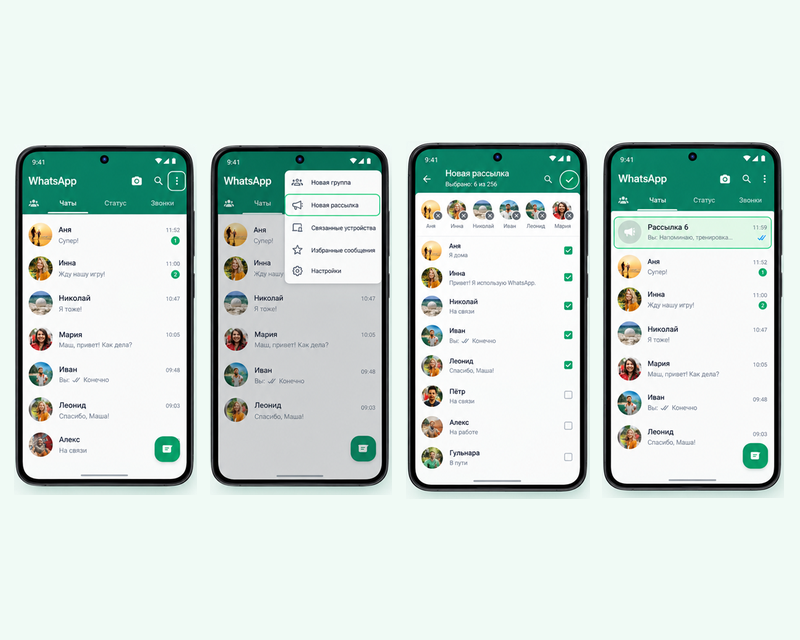
On Android
1. Open the “Chats” tab and tap the three dots (or the new message icon) in the upper-right corner
2. Select “Broadcast Lists.” Select the desired contacts and tap the checkmark to create the list.
Note: You can send a broadcast message to no more than 256 contacts.
3. Write your message and send it to the selected contacts.
4. The list will appear in your list of all chats: send messages there just as you would in regular chats.
On iOS
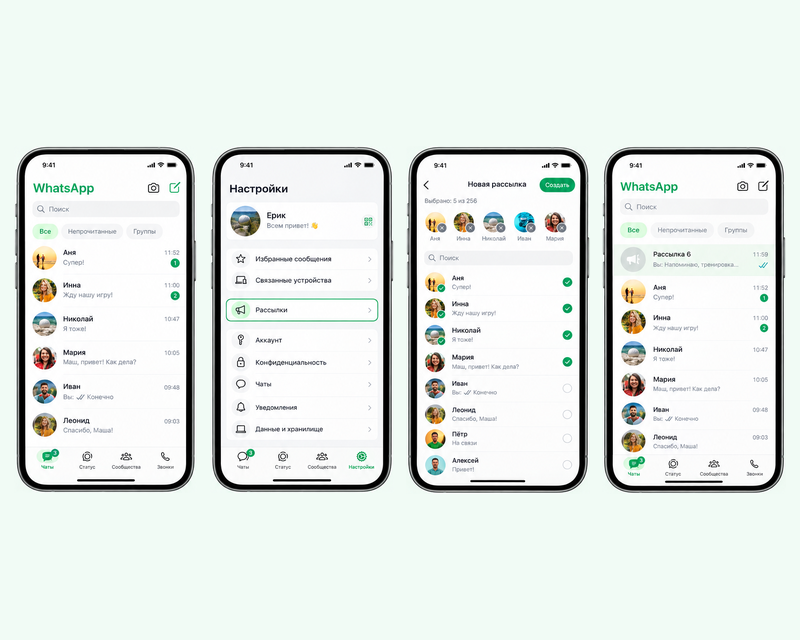
1. On the “Chats” tab, tap the new message icon in the upper-right corner
2. Select “New Broadcast”
3. Select the recipients and tap “Create”
Note: You can send a broadcast message to up to 256 contacts
4. The list will be saved in your general chat list and will be available for resending messages
On a computer
You cannot create a new broadcast list in WhatsApp Web or in the desktop apps, as stated in the WhatsApp Help Center. If a broadcast list has already been created on your phone, it will also appear on your computer and be available in the general chat list. You can send messages from there as well.
Note: The maximum number of recipients in a single broadcast list is 256; this applies to both regular WhatsApp and WhatsApp Business. However, you can create unlimited broadcast lists.
Why broadcast messages don’t reach everyone
Let’s look at the reasons why messages aren’t being delivered and what to do about it.
1. The recipient hasn’t saved your number. This is a requirement for broadcast messages: if you’re not in the person’s contacts, the message won’t reach them (see the WhatsApp Help Center for more details).
What to do: If any of your contacts aren’t receiving your broadcast messages, ask them to add you to their contacts.
2. The recipient’s number isn’t registered on WhatsApp. What to do: Check the number in your contact list before sending.
3. You’ve been blocked. What to do: There’s nothing you can do about this; it’s the recipient’s decision, and you’ll have to accept it.
4. The message didn’t send due to restrictions on your number. What to do: Reduce the frequency of your broadcasts and monitor recipients for spam complaints.
As you can see, the reasons we’ve described explain why messages aren’t being delivered to you or, on your behalf, to others.
WhatsApp Business: how the app differs from WABA
WhatsApp Business is a free app used by small businesses. It features a product catalog, quick replies, and labels for customer segmentation. However, broadcasts work the same way as in regular WhatsApp, that is, with the same limit of 256 recipients and similar requirements for keeping your phone number.
The WhatsApp Business API (WABA) operates differently, as it is the official channel for businesses with no limit on the recipient list, but with stricter requirements—for example, mandatory message templates that must be approved in advance by Meta and a fee for conversations.
App | WhatsApp Business | WABA |
Who uses it | Small businesses, sole proprietors, one-person operations | Companies with their own CRM and support team |
Contact list size | Up to 256 in a single mailing list | Virtually unlimited |
Message templates | Not required | Required; subject to Meta moderation |
Pricing | Free | Charged per conversation: rates vary by recipient country |
When you have more contacts than the limit: sending broadcast messages via the API
In WhatsApp and WhatsApp Business, the maximum number of people you can send a broadcast message to is limited to 256 contacts. To send a broadcast message to a list of 256 numbers, you need to perform several steps at once: manually enter each number, send a message to each one, and check who received it and who didn’t. Even if this takes just a few hours, not counting the time spent compiling the contact list and checking delivery status, the entire process of sending 256 messages will take you nearly a full day of manual work, which, you’ll agree, is very energy-intensive and tedious; but what if you have 1,000 or more contacts?
This is where a software solution comes in: the WhatsApp Business API (WABA) or the WhatsApp API gateway from GREEN-API for sending messages. With WABA, you must use pre-approved templates from Meta and pay for each conversation.
The WhatsApp API gateway works differently—it allows you to send messages from a regular phone number via HTTP requests. You connect a number by scanning a QR code, similar to how you open WhatsApp Web on a computer; only instead of a browser, an “instance” is linked to the number: this is the term for a single-number connection with its own settings and operating conditions. Using an instance, you can send messages to any number in your database in any quantity, since there is no 256-recipient limit here.
You can test the instance for free: the “Developer” plan offers an unlimited number of messages, 100 free WhatsApp number checks per month, and the ability to manage up to three chats simultaneously on this plan. This is enough to test sending messages to a small group of contacts before switching to a paid plan.
Which method to choose: a comparison in a table
Method | Number of recipients | Does your number need to be in their contacts? | Personalization | Delivery statistics visible | Risk of being blocked | Fee |
Mailing list (regular WhatsApp) | Up to 256 | Yes | Manually, by name | No, only per chat | Moderate | Free within the app |
Mailing list (WhatsApp Business) | Up to 256 | Yes | Manually, by customer tags | No | Moderate | Free within the app |
WABA | Virtually unlimited | No | By variables in the template | Yes, per conversation | Low, since it’s an official channel | Per conversation, pricing varies by country |
WhatsApp API gateway | No technical limitations | No | Programmatically, for any database field | Yes, by delivery status | Depends on the sending rate and number warm-up | As per the service provider rates |
This isn’t bulk messaging, although people often confuse the two
Method | Number of recipients | Does the recipient need to have your number in their contacts? | Personalization | Delivery statistics visible | Risk of being blocked | Fee |
Group | Up to 1024 members | No | No | No | Low, but not for mass mailings | Free |
Forwarding a message | Up to 5 chats at a time | No | No | No | Low | Free |
How to reduce the risk of your number being blocked
We cannot guarantee that your number will not be blocked if you actively send messages to your contact list. WhatsApp determines what constitutes spam based on complaints from recipients. However, you can reduce the risk by following these guidelines:
1. Obtain consent. Message only those who have voluntarily provided their number or subscribed; this will result in fewer spam complaints.
2. “Warm up” a new number. Start with a small number of messages per day and gradually increase the volume; don’t send messages to your entire contact list all at once.
3. Maintain intervals between messages. A sudden surge in activity from a new number or one that has been “silent” for a long time looks suspicious.
4. Make it possible to unsubscribe from the mailing list. Subscribers are less likely to file complaints with support.
Mass messaging to a cold list of contacts who don’t know you and haven’t consented to receive promotional messages almost always results in complaints and the number being blocked. The higher the percentage of people who mark a message as spam, the faster WhatsApp will restrict your account.
Don’t give false hope, and avoid phrases like “no ban” or “100% delivery”; no one except Meta can guarantee that. The company doesn’t specify the exact threshold of complaints that triggers a restriction, and any service promising to bypass this rule can’t guarantee anything.
How to message someone without saving their number in your contacts
We’ve already established that you can’t get onto a contact’s mailing list or message someone who doesn’t have you saved in their contacts. However, there are two ways to message someone for the first time without adding their number:
1. Via a link like wa.me/phone number. This method opens a chat with the number, and you don’t need to save the contact. It’s suitable for messaging one or two accounts, but it’s not suitable for mass messaging: you’ll have to edit the link manually for each recipient
2. Programmatically, via the API. As we’ve already mentioned, this is the official method for mass messaging; there’s no 256-contact limit, and you don’t need to add the number to your address book
How to prepare your list and write the email content
A good email is built around five key points. Let’s break each one down:
1. Compile a list of people who have already agreed to receive messages from you, for example, from orders, requests, or website subscriptions.
2. Address them by name. This approach builds more trust and makes the message seem less like spam
3. Focus on a single idea, that is, one reason why you’re sending the newsletter, without listing all the reasons
4. Highlight the benefit for the recipient, but avoid standard phrases like “we have discounts”; instead, explain why this is advantageous for the buyer
5. Include one clear call to action and an option to unsubscribe
Before: “Hello! We’re having a sale: discounts on our entire selection. Hurry: quantities are limited! See our profile for details!”
After: “Mariya, 20% off winter shoes through Friday! Pick the pair you want right here in the chat. Text ‘Stop’ if you don’t want to receive these messages.”
Messaging platforms and services: what to look for when choosing them
We’re not aiming to rank the best services, as that doesn’t make sense and the market changes faster than any list could keep up with. Before choosing a specific service or program, it’s helpful to know the following:
— Which channel the solution uses: the official one (WABA) or your own number;
— Whether there are delivery statistics for each message, rather than just a total count of messages sent;
— Can I integrate a CRM, or will I have to do this manually?
— What happens to the database and chat history if the number gets blocked?
— Is there a free plan so I can test the service with a small volume of messages before switching to a paid plan?
Please be aware that you should be wary of services that promise unlimited messaging, as such unknown tools operate by circumventing WhatsApp’s official mechanisms. If you don’t want to lose your number quickly, it’s best to avoid them.
How to tell if a broadcast worked
In the broadcast list, the status of each message can only be viewed manually by checking the checkmarks in a separate chat: one gray checkmark means “sent,” two gray checkmarks mean “delivered,” and two blue checkmarks mean “read.” It’s not possible to consolidate this into a single summary for the entire list, so you’ll have to open each chat one by one.
Through the API channel, things look different: for every message sent, you receive a notification with its status: sent, delivered, read, sending error or “number not registered on WhatsApp.”
If part of the database is unavailable: Telegram as a secondary channel
Some customers don’t have WhatsApp installed or their number isn’t responding; in this case, Telegram can come to the rescue. Fortunately, GREEN-API also offers integrations with these messengers: you can duplicate messages there as well, if you have a suitable audience.
When working via the API, both channels are connected similarly, so you can switch between messaging apps from a single interface without having to set up a separate process.
Frequently Asked Questions (FAQ)
Can I send a broadcast message on WhatsApp to all my contacts at once?
Yes, if you have fewer than 256 contacts. As we’ve already mentioned, you can only send messages for free to 256 contacts, and the messages will only reach those who have saved your number in their contacts. If you have more contacts or need delivery regardless of whether your number is saved, you’ll need WABA or a WhatsApp API gateway, as there’s no such limitation there.
How do I send a message to my contacts about a number change?
The easiest way to do this is via a broadcast list: gather the people who need to know about this and send a single message with your new number. Don’t forget about delivery conditions: if someone hasn’t saved your old number, the message won’t reach them, so it’s best to message them directly from your new number using a link, such as wa.me.
How do I send a message on WhatsApp?
Open a chat with the desired contact or create a new one via the “Chats” tab, type your message and tap the send icon. If the contact isn’t in your list, use the search function by phone number or send a link via wa.me with that number.
How do I send a mass message on WhatsApp?
For a small contact list, the app’s broadcast feature, which supports up to 256 recipients at a time, is sufficient. Keep in mind that recipients must have your number saved for the message to reach them.
For hundreds or thousands of contacts, you’ll need the WABA software channel with message templates or the WhatsApp API gateway, which sends messages via requests without manually compiling lists.
How do you set up a broadcast in WhatsApp?
1. In the app. Create a broadcast list, add contacts, and send messages to it just like in a regular chat.
2. Via the API. Connect your number to your service provider’s dashboard and send messages by sending text to any number in your database.
Conclusion
We’ve put together a comprehensive guide explaining what WhatsApp broadcasts are, where it’s safest to use them, and how to reduce the risk of having your number blocked. Read our GREEN-API blog to stay up to date on all the latest news from the world of WhatsApp and other messaging apps.