
Who the client is and what they need
Four people actively work on the Fleuritel app. One of them, the responsible developer, pushes code to GitHub. The others test the app and post what needs to be fixed or added.
Vibe coding, in plain terms, is development where you describe a task in ordinary words and an AI assistant writes the code. Vibe coding in a team usually runs into access issues: everyone needs an account in the task tracker and access to the GitHub repository, and every such access is one more person who can change the code. Fleuritel needed a process where testers write in plain text and only one person has access to the code.
How the setup works
At the center of the setup are a WhatsApp group and a GREEN-API instance. An instance is one phone number connected to the API. The number with the instance is a member of the group, so everything posted there is available through the API.
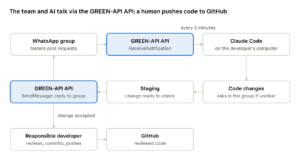
How it works: from a group message to code in GitHub
- A tester posts in the group what needs to be fixed or added.
- Every five minutes, Claude Code on the developer’s computer picks up new messages with the ReceiveNotification method — this is receiving notifications via HTTP API.
- Claude Code makes changes to the code and deploys them to the staging environment.
- The assistant writes what it changed and what to check — this is sending a reply to the group with the SendMessage method.
- Once the tester accepts the change, the responsible developer reviews it, commits it and pushes it to GitHub.
How it works
Requests in the group usually fall into three types: something is unclear, something is broken, something needs to be added.
A clarifying question. For example, a tester writes: “Add a date filter.” Claude Code doesn’t guess; it asks in the group: “By creation date or by last modified date?” Work starts after the answer.
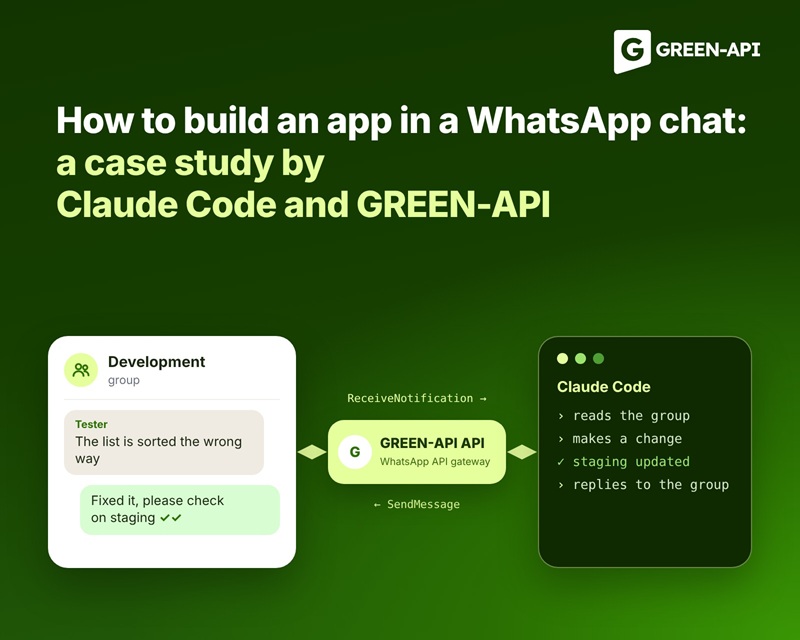
A fixed bug. For example: “The list is sorted alphabetically, but newest should come first.” Claude Code fixes the sorting, deploys the change to staging and posts that it’s ready to check.
A new form field. For example: “Add a phone number field to the form.” The assistant adds the field with format validation and says which page to find it on.
Why it works
The team works where it already is. Everyone has WhatsApp on their phone: no new apps or tickets, and a note goes out as soon as a bug is found.
One person commits and pushes to GitHub. Testers don’t need GitHub accounts, and there are no shared accounts: all changes go through one responsible person.
The group is a single place for ideas, questions and decisions. The whole history of the work is in one chat: who suggested what, what the assistant clarified and when a change was accepted.
A human stays in control
Claude Code doesn’t build the app on its own: it makes changes, and a human reviews and ships them. The line is drawn at what can be easily undone.
| Action | Who does it | Condition |
| Reads the group, asks questions | Claude Code | On its own |
| Makes code changes | Claude Code | On its own, on the developer’s computer |
| Deploys to staging | Claude Code | On its own |
| Changes the production database | Claude Code | Only after an explicit “yes” from the responsible developer |
| Commits and pushes to GitHub | Responsible developer | After reviewing the changes |
The AI works with the staging environment, not the production version. A mistake on staging takes minutes to fix, while a mistake in the production database can corrupt customer data, so such actions wait for confirmation.
In Claude Code, these limits are set with permission rules: allow — the assistant does it on its own, ask — only after confirmation, deny — forbidden. The rules are enforced by Claude Code itself, not by the model following a request in its instructions.
What to keep in mind if you replicate it
The process depends on one channel and one computer. Notifications wait in the GREEN-API queue for 24 hours; if the computer is off for longer, the GetChatHistory method retrieves what was missed: by default, the last 100 messages in the group. Agree in advance where to send urgent requests. For example, directly to the responsible developer.
WhatsApp has rules for automated messages. Its Terms of Service prohibit bulk and automated messaging, and a number can be banned for it. The assistant only replies to colleagues in a closed group, but the risk is not zero. Connect a separate number to the instance and don’t add it to other chats.
The AI replies in only one work group. Have the assistant process only incomingMessageReceived notifications with the work group’s chatId; this way it won’t reply in someone else’s chat or mistake its own reply for a new request.
How to replicate the setup
To start, you need a GREEN-API instance with a separate number, a WhatsApp group used only for work, Claude Code or another AI coding assistant, a staging environment and one person responsible for the repository. There are two ways to connect the WhatsApp API for AI agents.
Method 1. HTTP API methods
Set up receiving notifications via HTTP API: in the instance settings, leave the webhook URL field empty and enable incoming message notifications. For a message from the group, ReceiveNotification returns this (abridged):
{
"receiptId": 1,
"body": {
"typeWebhook": "incomingMessageReceived",
"senderData": {
"chatId": "120363043968066561@g.us",
"sender": "79876543210@c.us"
},
"messageData": {
"typeMessage": "textMessage",
"textMessageData": {"textMessage": "Newest first, not alphabetical"}
}
}
}
Here, chatId is the group, and sender is the person who wrote the message. After processing the message, the assistant deletes the notification by receiptId with the DeleteNotification method and replies to the group with the SendMessage method:
curl -X POST \
'{{apiUrl}}/waInstance{{idInstance}}/sendMessage/{{apiTokenInstance}}' \
-H 'Content-Type: application/json' \
-d '{
"chatId": "120363043968066561@g.us",
"message": "Fixed the sorting: newest first now. Please check on staging."
}'
In Claude Code, the /loop command runs the check on a schedule. For example, /loop 5m check new messages in the work group repeats the task every five minutes while the session is open and ends on its own after seven days. Without an open session, a scheduled task in the Claude desktop app will do; set the five-minute interval by asking Claude, since the minimum in the form is one hour.
Method 2. GREEN-API MCP server
MCP is an open standard for connecting AI assistants to external services. The GREEN-API MCP server for AI assistants turns API methods into ready-made tools: get a notification, read chat history, send a message or a file, manage a group.
Add the server as a connector in Claude’s settings: the address is https://mcp.green-api.com/mcp; during authorization, enter the Instance ID and API Token from your GREEN-API console. If Claude Code is signed in with the same Claude account, the connector appears there automatically — check with the /mcp command. After that, tasks are set in plain words. For example: “Check the work group, make the changes and post what to check.”
The setup can be extended through the API. For example, send a screenshot of the change with the SendFileByUpload method or a poll with the SendPoll method.
Start with the free Developer plan: it’s enough to test the setup on one work group. Sign up at green-api.com and create an instance.
We created a WhatsApp group just for this work. Every message in it is meant for Claude Code, so there’s nothing to filter out of a general conversation,” says the Fleuritel team.
FAQ
Does Claude Code have a built-in WhatsApp integration?
No. Claude Code’s ready-made messenger channels are still in preview and cover Telegram, Discord and iMessage. WhatsApp is connected through an external API, for example, GREEN-API.
Do you need a server if Claude Code runs on a computer?
No. The assistant requests new messages itself via the HTTP API, so you don’t need a public URL for webhooks. But the setup only works while the computer is on; for 24/7 operation, you need a server.
How does the AI know a message is meant for it?
The group was created only for working with the assistant, so every message in it is addressed to the assistant. If the group also discusses other topics, agree on a marker. For example, start requests with the word “Claude.”
What if the AI makes a mistake in a change?
The mistake only reaches the staging environment. The tester posts about it in the group, and code reaches the production version only after the responsible developer reviews it.
Can you do the same with Telegram?
Yes. GREEN-API also has a Telegram API with the same ReceiveNotification and SendMessage methods.