
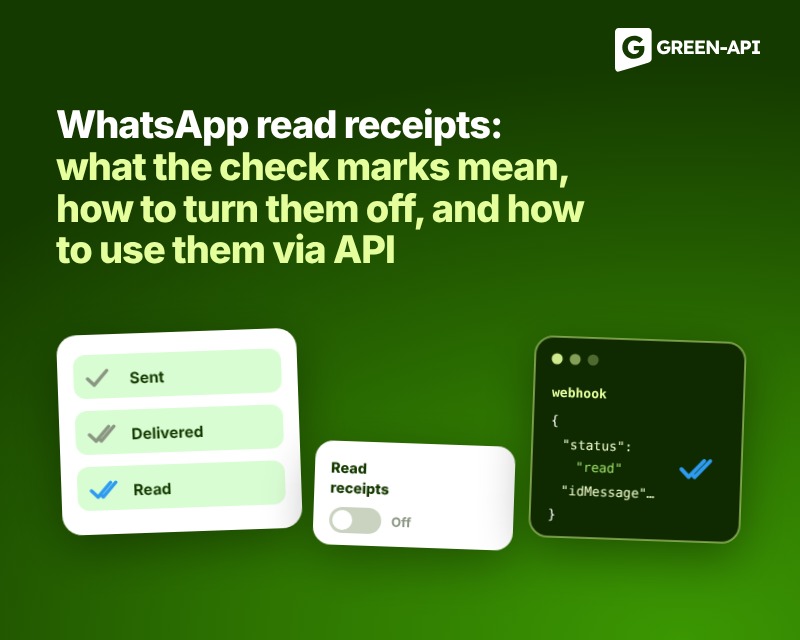
Read receipts are the check marks next to a message you send. They show if the message was sent, if it reached the recipient, and if the recipient read it. In the app, you can turn read receipts off in your privacy settings. A business that works through an API gets the same statuses automatically. It can also mark customer messages as read on its own.
Table of Contents
What do the check marks in WhatsApp mean
WhatsApp puts an icon next to every message you send. According to the WhatsApp Help Center, the icons mean the following:
| Icon | What happened |
| Clock | The message is not sent yet, usually because of a connection problem |
| One gray check mark | The message was sent |
| Two gray check marks | The message was delivered to the recipient’s phone or linked device |
| Two blue check marks | The recipient read the message |
In a group chat, the second check mark appears when all members have received the message. The check marks turn blue when all members have read it. A voice message gets a blue microphone when someone has played it. If you edit a message, the receipts reset, and you see who read the new version.
You can see the exact time of delivery and reading in the message info. Tap and hold your message, then tap the Info icon (i). On some phones, this option is in the menu with three dots. There you can see when the message was delivered and read. For a voice message, you can also see when it was played.
Why the check marks do not turn blue
If a message was delivered long ago but the check marks are still gray, there can be several reasons:
- you or the recipient turned off read receipts;
- the recipient blocked you;
- the recipient has not opened the chat yet;
- you or the recipient have connection problems;
- the date and time are set incorrectly on your phone or the recipient’s phone.
Also, when someone gets a message from you for the first time, the read receipt may not arrive.
How to turn off read receipts
You may not want others to see that you have read their messages. In this case, you can turn read receipts off. Open WhatsApp Settings, then tap Privacy and turn off Read receipts. To turn them back on, switch the toggle on again.
This setting has a downside: you will also stop seeing if others read your messages. You may also not see who viewed your status updates. Others may not see that you viewed their status updates. In group chats and for voice messages, you cannot turn read receipts off. They always work there.
How to work with read receipts via API
When a business talks to customers through the WhatsApp API, it also needs to know if a message arrived and if the customer read it. For example, a CRM can show an agent that the customer has already seen the invoice. It can also show that a message was not delivered. In the GREEN-API WhatsApp API gateway, read receipts arrive as message statuses. You can work with them in both directions.
How to know that a customer read your message
Statuses of sent messages come to your server in the outgoingMessageStatus webhook. To receive them, turn on the “Receive notifications about sent message statuses” setting in the GREEN-API console. You can also pass outgoingWebhook with the value yes in the SetSettings method. Settings take effect within 5 minutes.
Each notification contains the message ID (idMessage), the chat, and the status. The main statuses are:
| Status | What it means |
| sent | The message was sent |
| delivered | The message was delivered to the recipient |
| read | The message was read, viewed, or played |
| failed | An error occurred during sending; the description field explains it |
| noAccount | The recipient’s number has no WhatsApp account |
The failed and noAccount statuses always arrive, even if status notifications are turned off. The full list, including statuses for groups and temporary restrictions, is in the documentation.
This is what a notification looks like when a customer has read a message:
{
"typeWebhook": "outgoingMessageStatus",
"chatId": "12025550123@c.us",
"timestamp": 1727691478,
"idMessage": "3EB0608D6A2901063D63",
"status": "read",
"sendByApi": true
}
Your server uses idMessage to find the sent message and update its status. To check a specific message without a webhook, call the GetMessage method. The response has a statusMessage field with the same status.
Keep in mind that the API follows the same rules as the app. If the customer turned off read receipts, the read status will not arrive. The message will stay delivered. In a group, the read status means that all members have read the message.
How to mark customer messages as read
The customer also sees the check marks. If messages come to your CRM and not to a phone, decide when the customer will see blue check marks. There are three options.
The first option is to mark all incoming messages as read right away. To do this, pass markIncomingMessagesReaded with the value yes in SetSettings. This is simple. But the customer will see blue check marks even if an agent has not opened the chat yet.
The second option is to mark messages as read when you reply to the customer through the API. To do this, pass markIncomingMessagesReadedOnReply with the value yes. Then the blue check marks appear together with your reply.
The third option is to mark the chat as read when an agent opens it. To do this, call the ReadChat method:
curl -X POST "{{apiUrl}}/waInstance{{idInstance}}/readChat/{{apiTokenInstance}}" \
-H "Content-Type: application/json" \
-d '{"chatId": "12025550123@c.us"}'
Without idMessage, the method marks all unread messages in the chat as read. With idMessage, it marks messages up to and including that message. The response is setRead: true. The method works only if notifications about incoming messages are turned on. Messages received before you turned on this setting will stay unread.
How to know that a message was read on the phone
Sometimes an employee replies to a customer from the CRM and also from the phone linked to the number. The CRM needs to know that a message was already read on the phone. To do this, turn off automatic reading (markIncomingMessagesReaded with the value no). Then turn on notifications about incoming message statuses. When someone reads a message on the phone, the incomingMessageStatus webhook arrives with the read status. Learn more in the GREEN-API FAQ.
You can try working with statuses on your own number: connect it on the Developer plan.
FAQ about read receipts
Can I read a message without the sender seeing blue check marks?
Yes, if you turn off read receipts in your privacy settings. But then you will not see if others read your messages either. This does not work in group chats: read receipts are always visible there.
Why does the read status not arrive via API?
Most often, the customer turned off read receipts. In this case, the message stays delivered forever. Also check that notifications about sent message statuses are turned on. Make sure that 5 minutes have passed since you changed the settings. In groups, the read status arrives only when all members have read the message.
Does the customer see that a message was marked as read via API?
Yes. When you mark a message as read with the ReadChat method or an instance setting, the customer sees blue check marks. It looks the same as if you read the message in the app. The exception is when read receipts are turned off on your number or on the customer’s side. Then the check marks stay gray.