
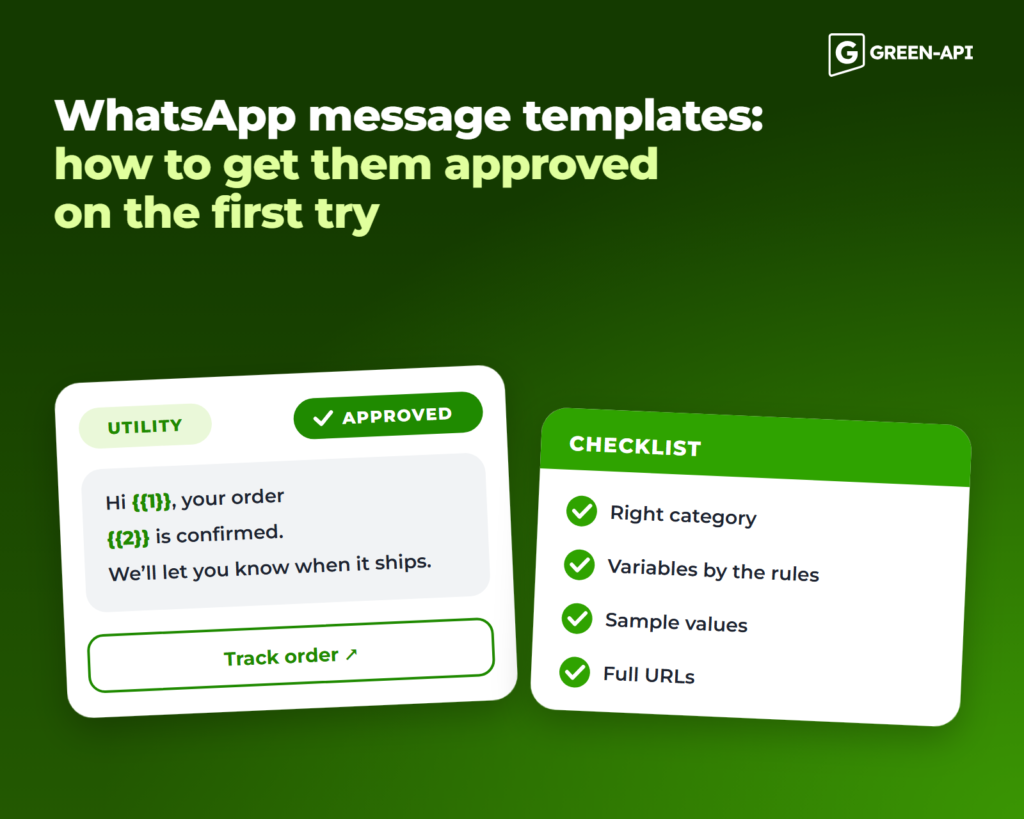
A message template is a pre-approved message with fixed text and placeholders for dynamic values. On the WhatsApp Business API, templates are the only way to reach a customer first or to continue a conversation more than 24 hours after their last message. You can send free-form messages during the 24-hour customer service window. After that, only approved templates are allowed.
Every new template goes through review, automated and sometimes manual. Below are the category rules, variable rules, a pre-submission checklist and “rejected → approved” examples.
Table of Contents
The three template categories
| Category | Used for | Examples | Restrictions | Price |
|---|---|---|---|---|
| Marketing | Sales, promotions, bringing customers back | Discounts, new arrivals, birthday greetings | Requires opt-in; subject to per-user marketing limits | Highest |
| Utility | Replies to a customer’s action or request | Order confirmations, shipping updates, invoices, appointment reminders | No promotional content; must relate to a specific order, account or transaction | Lower than Marketing |
| Authentication | One-time passcodes | Login codes, phone number verification | Code and OTP button only: no URLs, media or emojis | Separate rate |
The most important rule: if a template mixes useful information with promotion, Meta treats it as Marketing. An order update with a discount code or a feedback survey with a promotional offer both count as marketing. So does a template with no clear purpose, such as one that contains only {{1}}.
Automatic recategorization. If you submit a template as Utility and it contains marketing content, it is approved as Marketing. Meta also regularly re-checks approved templates and can move them from Utility to Marketing.
You can dispute the decision within 60 days: WhatsApp Manager → Business Support → Template Category Updates → Request Review. Repeatedly submitting promotional content as Utility leads to a warning, then a 7-day ban on utility messages, then a 30-day ban.
Template anatomy
| Component | Required | Limits |
|---|---|---|
| Header | No | Text up to 60 characters with up to one variable, or media: image, video or document |
| Body | Yes | Up to 1,024 characters |
| Footer | No | Up to 60 characters, no variables |
| Buttons | No | Up to 10: no more than 2 URL buttons, 1 phone number, up to 10 quick replies. Labels: 20–25 characters depending on the type |
Quick replies must be grouped together: a “quick reply – URL – quick reply” sequence will be rejected.
Variables: the most common reason for rejection
A variable such as {{1}} is replaced with a name, order number or date when the message is sent. To pass review:
- Number them sequentially, with no gaps:
{{1}},{{2}},{{3}}, not{{1}},{{2}},{{4}}. - Do not start or end the message with a variable: add a word or at least a punctuation mark before the first and after the last one.
- Do not place two variables next to each other: put some text between
{{1}}and{{2}}. - Do not use too many variables: a safe guideline is at least three words of fixed text per variable.
- Provide a sample value for every variable, with no
#,$or%characters.
❌ {{1}}, order {{2}} {{3}}✅ Hi {{1}}, your order {{2}} has shipped and should arrive by {{3}}.
Pre-submission checklist
| Rejection reason | How to fix it |
|---|---|
| Category does not match the content | Remove promotional content from Utility or submit the template as Marketing |
| Variable errors | Check the rules in the section above |
| Missing samples | Add a sample for every variable and a sample file for media headers |
| Commerce Policy violation | Do not offer prohibited goods or services; prices and product descriptions count as part of a transaction |
| Requests for sensitive data | Never ask for full card, account or ID numbers – the last few digits at most |
| Threats or pressure | No “we will take legal action” or public shaming; keep the tone neutral |
Shortened links and wa.me | Use the full URL on your own domain, ideally in a button; use a phone number instead of wa.me |
| Duplicate of an existing template | Change the body and footer wording, not just the name |
| Exceeded limits | Body up to 1,024 characters, no more than 10 emojis |
| Language mismatch | Select the language of the text and do not mix languages |
| Extra formatting | No more than four spaces in a row; no emojis or line breaks in the header |
| Unclear purpose | “Hi {{1}}, thanks” does not explain what the thanks is for. Add context |
Examples: rejected → approved
Order confirmation (Utility)
❌ {{1}}, order {{2}} is confirmed! Get 15% off your next one with code SALE15: bit.ly/xxxx
It starts with a variable, the promo code makes it Marketing, and the link is shortened.
✅ Hi {{1}}, your Shelfly order {{2}} for {{3}} is confirmed. We'll let you know as soon as it ships.URL button: "Track order" → order page on shop.example
We removed the promotion, put every variable inside the text and moved the full link to a button.
Appointment reminder (Utility)
❌ Reminder: your appointment {{1}} {{2}}. Miss it and you lose your deposit.
Two variables next to each other and a threatening tone.
✅ Hi {{1}}, this is a reminder of your appointment at Northside Dental on {{2}} at {{3}}. If your plans have changed, you can reschedule below.Quick replies: "Confirm" · "Reschedule"
Date and time are separated by text; the threat is replaced with a useful action.
Login code (Authentication)
❌ Your code: {{1}} 🔐 Log in at site.example/login and get 100 bonus points!
A link, an emoji and a bonus offer in a category that only allows the code.
✅ Meta's preset text with the code {{1}}+ security disclaimer ("do not share this code")+ expiry: 10 minutesButton: "Copy code"
Meta sets the text of authentication templates; you only choose the options. Learn more about AUTHENTICATION templates.
Subscriber promotion (Marketing)
❌ Category Utility: TODAY ONLY!!! 50% OFF EVERYTHING! Tap bit.ly/xxxx
A promotion submitted as Utility, capital letters and a shortened link.
✅ Category Marketing: Hi {{1}}, Shelfly subscribers get 20% off home essentials until {{2}}. Browse the collection in our catalog.URL button: "Open catalog" · Quick reply: "Unsubscribe"
Correct category, calm tone, end date as a variable. An opt-out button is not required, but it reduces complaints.
Template rejected: what to do next
- Check the reason. Meta emails the account admins, and the reason also appears in WhatsApp Manager and under Rejected message templates in Business Support Home.
- Fix it and resubmit. You can edit a rejected template as many times as you need; each edit is reviewed again.
- File an appeal if you are confident the template complies. Include sample values for the variables; you will get a decision within 24 hours.
Be careful with names: once you delete an approved template, its name is locked for 30 days. So edit rejected templates rather than deleting and recreating them.
Statuses and review times
| Status | What it means |
|---|---|
PENDING | Under review: usually a few minutes, 24 hours at most |
APPROVED | Approved and ready to send |
REJECTED | Rejected; you can edit it or appeal |
PAUSED | Paused due to low quality |
A template can lose its approved status. Every template has a quality rating that drops when customers block the business, report messages or leave them unread. When a template reaches the lowest rating, it is paused: for 3 hours the first time, 6 hours the second time, and the third time it is disabled. Stop campaigns that use a paused template and review the text and targeting.
Managing templates via API
With dozens of templates for different scenarios and languages, creating them manually in WhatsApp Manager takes time. With GREEN-API, you can create a template via API in a single request and check its review status in the same API you use to send messages:
{ "elementName": "order_confirmation", "languageCode": "en", "category": "UTILITY", "templateType": "TEXT", "vertical": "Order confirmation", "content": "Hi {{1}}, your order {{2}} is confirmed. We'll let you know as soon as it ships.", "example": "Hi Anna, your order 48213 is confirmed. We'll let you know as soon as it ships.", "enableSample": true}
Start sending only after the status changes to APPROVED. If a template is rejected and the reason is not clear, contact GREEN-API support – we will help you rewrite the text.
FAQ
How long does template review take?
Usually a few minutes, 24 hours at most. Appeals are also decided within 24 hours.
Can I edit an approved template?
Yes, up to 10 times in 30 days and no more than once every 24 hours. You cannot change the category of an approved template, and every edit triggers a new review.
Why was my Utility template switched to Marketing?
The review found promotional content, or the message was not connected to a specific customer action. Remove the promotion and create a new template, or request a category review within 60 days.
Connect the WhatsApp Business API and manage templates over HTTP API with GREEN-API: WABA.