
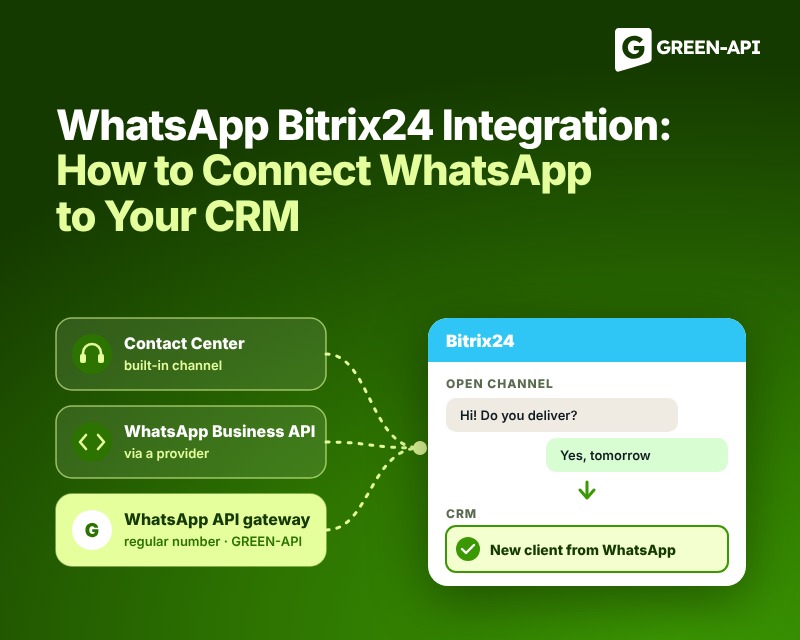
You can connect WhatsApp to Bitrix24 in three ways: with a built-in Contact Center channel, with the official WhatsApp Business API from a provider, or with a WhatsApp API gateway that links a regular number to the CRM. In every case, chats go to an Open Channel, and the customer goes to the CRM. The ways differ in what you need to start, what they cost and whether the business can message a customer first.
Table of Contents
What You Get When You Connect WhatsApp to Bitrix24
When WhatsApp is connected to Bitrix24, your team answers customers right from the CRM, not from personal phones. Each chat is linked to the customer’s record, and the whole conversation stays with the company.
In practice, this means:
- a sales rep sees the full chat history with a customer, even if a colleague answered before;
- new chats are assigned to team members automatically;
- when a new customer writes, Bitrix24 creates a lead or a deal;
- you can send order status updates from the CRM;
- a chatbot can answer common questions;
- a manager sees who answers customers and how fast.
Three Ways to Connect WhatsApp to Bitrix24: How They Differ
All three ways work through an Open Channel. An Open Channel is a Bitrix24 tool that collects customer messages from different channels in one place and assigns them to your team.
| Way | What you need to start | Can the business message first? |
| Built-in Contact Center channel | A Meta business account and a provider contract | Only with a template |
| Official WhatsApp Business API through an app | A Meta business account and a WABA provider | Only with a template |
| WhatsApp API gateway | A regular WhatsApp number and a server for the adapter | Yes, but only to people who agreed |
The first two ways use the official WhatsApp Business API (WABA), a separate Meta product for business. With it, a business can reply to a customer within 24 hours after the customer’s message. To write first, or after 24 hours, the business can use only a template that Meta approved in advance. You pay the provider for the connection and for template messages: since July 1, 2025, Meta charges for each such message.
The gateway works differently. It connects a regular WhatsApp or WhatsApp Business number to the CRM, the same way you connect a computer to WhatsApp Web. Technically, you can message first, but WhatsApp rules let you message only people who gave you their number and agreed to get messages. In GREEN-API, the gateway works through an instance. An instance is the connection of one number to the API.
How to Connect WhatsApp to Bitrix24 With a WhatsApp API Gateway
The setup has two parts. First, you connect your number to GREEN-API. Then you link it to Bitrix24 through an adapter, a small service that passes messages between WhatsApp and the Open Channel.
Create an instance and link your number with a QR code
- Sign up in the GREEN-API console. For a test, the Developer plan is enough, and no payment is needed.
- Create an instance.
- Open WhatsApp on your phone, go to Linked devices and scan the QR code from the console.
- Copy the Instance ID and the API Token from the console. You will need them in Bitrix24.
Link the instance to a Bitrix24 Open Channel
The GREEN-API integration with Bitrix24 is an open-source adapter that you run on your own server. The code is on GitHub under the MIT license. So it is best to give this part to a developer or an integrator.
What you need:
- a server with Node.js 20 and MySQL 5.7 or newer, reachable from the internet;
- a Bitrix24 developer account, which requires Technology Partner status from Bitrix24 support;
- a cloud or on-premises Bitrix24 account.
Setup steps:
- In the Bitrix24 vendor account, create an app and give it access to Open Channels, Contact Center, chat and the CRM.
- Deploy the adapter on your server. The documentation has a ready Docker setup.
- Install the app on your Bitrix24 account.
- Open Contact Center, choose the GREEN-API WhatsApp connector and enter the Instance ID and the API Token.
- Choose the Open Channel and the team members who will answer.
- Send a test message to the connected number and check that it appears in Bitrix24.
You can connect several numbers to one Bitrix24 account: each instance works with its own channel. If something does not work, ask in the GitHub issue tracker or contact GREEN-API support.
To try the integration with your own number, sign up in the console and follow the steps above.
How to Connect WhatsApp With Built-in Bitrix24 Tools
In Bitrix24 itself, you connect WhatsApp in Contact Center. Open CRM, go to Customers, then Contact Center, and choose WhatsApp. After that, link the channel to an Open Channel and choose who will answer.
According to the Bitrix24 Help Center, there are three built-in options, and they work through outside providers:
- via Twilio, with a number you rent from Twilio;
- via Edna.io, the official WhatsApp Business API through the Edna service;
- via Instant WhatsApp, a channel for the chat widget on your website.
What this way cannot do
Twilio and Edna.io are WABA connected from the Bitrix24 interface. So you need a Meta business account, and you can message a customer first only with an approved template. You pay the provider, and Edna lists fees for connection, a license and messages. Instant WhatsApp works only through the widget on your website. Also, Twilio is not available in Russia now, as the Russian Bitrix24 Help Center says.
What Working With WhatsApp Chats in the CRM Looks Like
Do not mix up the two messengers. The internal Bitrix24 messenger is for chats between employees. Customer messages from WhatsApp go to Contact Center, a separate part of the messenger for Open Channels.
When a customer writes on WhatsApp, the message appears in Contact Center in the Bitrix24 messenger. If the customer’s number is already in the CRM, Bitrix24 links the chat to their record. If the customer is new, Bitrix24 creates a lead or a deal. Chats are assigned to team members in turn, evenly or to everyone at once, and you set this in the Open Channel. All chats stay in the Contact Center chat list, where a manager can view them.
Through the GREEN-API gateway, Bitrix24 receives text, photos, videos, documents, voice messages, locations and contacts. From the CRM, you can reply with text and files.
Bulk Messages and Notifications From Bitrix24: How to Follow the Rules
You can send messages from the CRM, but only to people who agreed. WhatsApp rules require that the customer gave you their number and agreed to get messages, and that you stop as soon as they ask. The WhatsApp Business Messaging Policy says so.
There are two kinds of messages. Deal notifications, such as order status or a visit reminder, are messages that the customer expects and that relate to their order. Marketing messages are not expected, so consent matters even more for them.
To send messages by the rules:
- send to a segment from the CRM, not to the whole base, for example, customers with an active order;
- keep a consent mark in the customer record, with where they gave consent;
- in every message, say how to unsubscribe. For example: “Reply STOP to stop these updates”;
- add pauses between messages instead of sending everything at once.
For marketing messages to customers who have not written to you for a while, use the official WhatsApp Business API with approved templates.
How Much Does the Integration Cost, and What Can You Do for Free?
The total cost has two parts: your Bitrix24 plan and the WhatsApp channel itself.
Bitrix24 does not charge for connecting messengers, but the number of Open Channels depends on your plan, and the free plan has the fewest. Check the current limits on the Bitrix24 pricing page.
The WhatsApp channel is paid in different ways. With a built-in channel or WABA, you pay the provider for the connection, the license and template messages, so the total grows with the number of customers. A WhatsApp API gateway has a fixed price per number, with no limits on chats or messages. If you run the adapter on your own server, add the cost of the server.
You can test everything for free. On the GREEN-API Developer plan, you get one instance and chats with three contacts. This is enough to connect a number, link it to Bitrix24 and send test messages. To work with customers, you need a paid plan. See the plans page for details.
Limits and Risks to Know in Advance
The gateway works through a normal WhatsApp account, and the same rules apply as for any user. The WhatsApp Terms of Service forbid bulk and automated messaging, and WhatsApp can block a number for breaking them. You cannot remove this risk fully, but you can reduce it.
- Do not start sending many messages from a new number right away. GREEN-API recommends warming up a new number for at least 10 days: normal chats first, then more messages step by step.
- Watch for complaints. If customers block the number or mark messages as spam, stop sending and check who you message and what you send.
- The phone with the number must go online from time to time. If it stays offline for more than 14 days, the instance logs out, the GREEN-API FAQ
- If you reinstall WhatsApp or move the number to another phone, check in the console that the instance is still authorized. If not, scan the QR code again.
- You can connect a number that already works in the WhatsApp Business app. The app on the phone keeps working.
- The adapter runs on your server, so you are responsible for its updates and uptime. You can check the status of GREEN-API itself on the status page.
Chatbots and Auto-Replies in the Connected Channel
Simple auto-replies are built into Bitrix24. In the Open Channel settings, you can turn on a welcome message for new customers and a separate reply for messages outside working hours. You can also add a chatbot to the Open Channel, and on some plans, an AI agent that answers questions and passes the chat to a person with its history. These tools work with any Open Channel source, including the gateway.
For your own bot with complex scenarios, use the GREEN-API chatbot libraries. For example:
- a bot with buttons and menus in Python or JavaScript;
- a bot in 1C: whatsapp-chatbot-1c;
- a bot that answers with GPT: there are ready examples for Python, Go and Node.js.
For Developers: Connecting Through the HTTP API and Webhooks
If the ready adapter does not fit, you can build the connection yourself. On the WhatsApp side, everything goes through the GREEN-API HTTP API:
- the SendMessage method sends text, and SendFileByUrl sends a file by link, up to 100 MB;
- incoming messages come to your server with the incomingMessageReceived webhook;
- statuses of sent messages, such as sent, delivered and read, come with the outgoingMessageStatus webhook. To get them, turn on status notifications in the instance settings.
On the Bitrix24 side, you add your own channel through the Open Channels REST connector. The Bitrix24 developer example shows how to register it and pass messages. You can also start from our adapter: its code is open, and it is built on the GREEN-API integration platform.
This is how you send an invoice to a customer from your system:
curl -X POST "{{apiUrl}}/waInstance{{idInstance}}/sendFileByUrl/{{apiTokenInstance}}" \
-H "Content-Type: application/json" \
-d '{"chatId": "12025550123@c.us", "urlFile": "https://example.com/invoice-1024.pdf", "fileName": "invoice-1024.pdf", "caption": "Hello! Here is the invoice for order #1024."}'
For your own code, there are SDKs for Python, PHP, Node.js and 1C. Source code on GitHub: Python, PHP, JavaScript, Go.
Frequently Asked Questions About the WhatsApp Bitrix24 Integration
How do I connect WhatsApp to Bitrix24?
There are three ways. A built-in channel is connected in Bitrix24 Contact Center and works through the official WhatsApp Business API from a provider. You can also connect the official API through an app. A WhatsApp API gateway connects a regular number with a QR code, and an adapter links it to an Open Channel.
Can I connect WhatsApp to Bitrix24 for free?
You can test the integration for free: Bitrix24 doesn’t charge to connect messengers, and GREEN-API offers a Developer plan for testing. But to work with customers, you need a paid gateway plan or a WABA provider to send messages. The free Bitrix24 plan has the fewest Open Channels.
What do I need to integrate WhatsApp with Bitrix24?
A WhatsApp number, admin rights in Bitrix24 and a plan with enough Open Channels. For a built-in channel or WABA, you also need a Meta business account. For the gateway, you need a GREEN-API console account and a server for the adapter.
How do I add another WhatsApp number to Bitrix24?
In Bitrix24, each channel connects to its own Open Channel. So for a second number, create a new Open Channel and connect a second instance or a second channel to it. Check that your Bitrix24 plan allows one more Open Channel.
What happens to chats if a sales rep leaves the company?
Nothing: chats are stored in Bitrix24, not on the rep’s phone. Their chats stay in Contact Center and in customer records, and they will not get new messages. Assign a new team member to the Open Channel, and they will see the full chat history.