
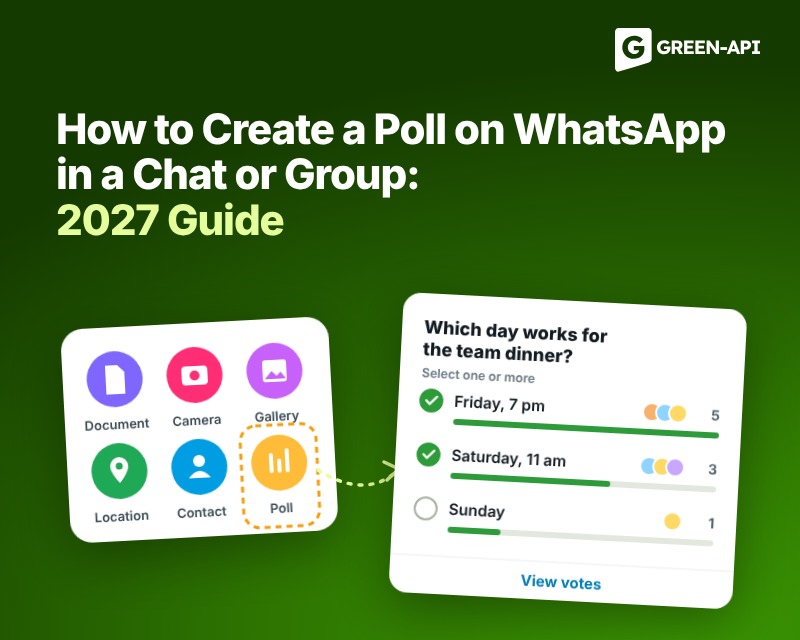
To create a poll on WhatsApp, open a chat or a group. Tap the paperclip icon on Android or the plus icon on iPhone, then choose Poll. Type your question and the answer options, and send the poll. People in the chat vote by tapping an option. On a PC, the steps are almost the same.
What is a WhatsApp poll?
A WhatsApp poll is a chat message with a question and a few answer options. People in the chat choose an option to vote. Many people call a poll a vote or voting, or a survey and they mean the same thing. A poll helps a group decide fast, for example, pick a date or split tasks.
The WhatsApp Help Center calls polls “a simple way to ask questions and get real-time answers”. You do not need a separate app or a link. The poll appears in the chat, next to your other messages.
Here are a few everyday ways to use a poll:
- Pick a date. Ask your family which weekend works for a visit.
- Split tasks. Ask friends who will bring food, drinks, or games to a party.
- Get a quick opinion. Ask your work group which time is best for a call.
The steps for each device are below.
How to create a poll on WhatsApp on Android
To create a poll on WhatsApp on Android, open the chat. Then tap the paperclip icon in the message field. In the attachment menu, choose Poll. Type your question and the answer options. Check the poll settings. Then tap the send arrow. The poll appears in the chat.
The steps are the same on Samsung and other Android phones:
- Open WhatsApp and go to the chat or group where you want the poll. Check the chat name at the top: polls often go to the wrong chat by mistake.
- Tap the paperclip icon in the message field. The attachment menu opens.
- Tap Poll.
- Type your question under Question. Then type each answer under Options. A new empty line appears after each option. To change the order, press and hold the two lines next to an option. Then drag it up or down.
- Check the settings. In any chat, you can turn Allow multiple answers on or off. In a group, you also see Hide voter names and Set end time. Both are off by default. You cannot change the settings after you send.
- Tap the send arrow in the bottom right corner.
According to the WhatsApp Help Center, the question can be up to 255 characters. Each option can be up to 100 characters.
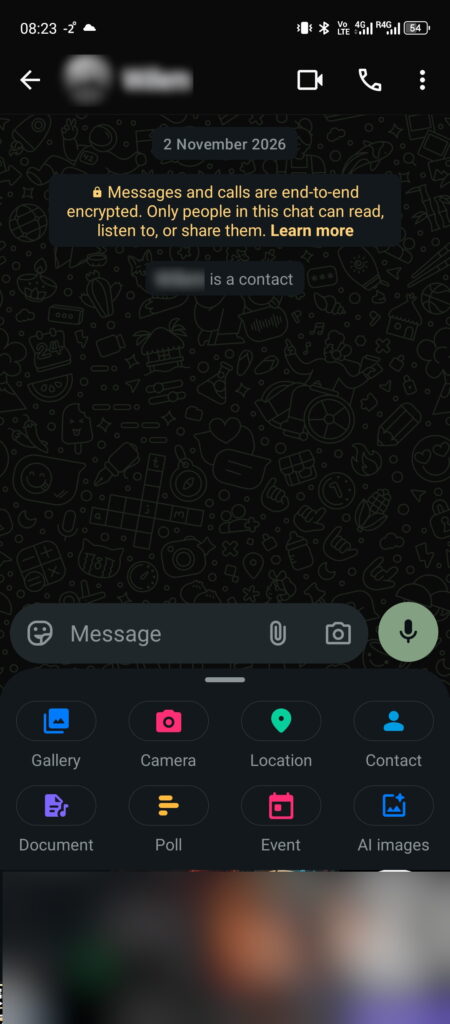
The attachment menu with Poll. WhatsApp 2.26.42.74, Android 14, November 2026.
The poll form in a group. WhatsApp 2.26.42.74, Android 14, November 2026.
How to create a poll on WhatsApp on iPhone
To create a poll on WhatsApp on iPhone, open the chat. Then tap the plus icon next to the message field. Choose Poll from the menu. Type the question and the answer options. Check the poll settings, then tap Send. The poll appears in the chat, and people can vote.
The main difference from Android is the icon. On iPhone, you tap the plus icon instead of the paperclip:
- Open WhatsApp and go to the chat or group where you want the poll. Check the chat name at the top: polls often go to the wrong chat by mistake.
- Tap the plus icon on the left side of the message field.
- Tap Poll.
- Type your question under Question, then type each answer under Options. To change the order, press and hold the three lines next to an option. Then drag it up or down.
- Check the settings. In any chat, you can turn Allow multiple answers on or off. In a group, you also see Hide voter names and Set end time. Both are off by default. You cannot change the settings after you send.
- Tap Send in the top right corner.
The limits are the same as on Android: up to 12 options, 255 characters for the question and 100 characters for each option (WhatsApp Help Center).
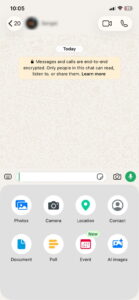
The plus menu with Poll. When the menu is open, the plus icon turns into a keyboard icon. WhatsApp 2.26.40.77, iOS 26.5.2, November 2026.
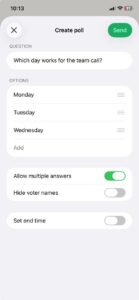
The poll form in a group on iPhone. Send is at the top right. WhatsApp 2.26.40.77, iOS 26.5.2, November 2026.
How to create a poll in a WhatsApp group
In a group chat, you create a poll with the same steps as in a private chat. By default, any member can post a poll, and all members see it and can vote. If only admins can send messages in the group, only a group admin can post a poll.
The short version:
- Open the group chat.
- Tap the paperclip icon (Android) or the plus icon (iPhone), then tap Poll.
- Type the question and options, check the settings and send.
What is different in a group:
- Everyone in the group sees the poll. By default, members can also see who voted for which option. To hide names, turn on Hide voter names before you send. People still see how many votes each option has.
- Votes update live. Each new vote shows in the poll immediately, so the group sees the result change.
- Admin-only groups. Some groups let only admins send messages. In these groups, regular members cannot post a poll. Ask a group admin to post it for you.
Group polls also have two extra settings that private chats do not have: Hide voter names and Set end time.
To check who can post, open the group and tap the group name. Then tap Group permissions and look at Send new messages under Messaging. If it says Everyone, any member can post a poll.
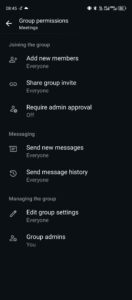
Group permissions: Send new messages is under Messaging. WhatsApp 2.26.42.74, Android 14, November 2026.
How to create a poll on WhatsApp Web and desktop
You can also create a poll on a PC. Use WhatsApp Web or the WhatsApp desktop app for Windows and Mac. Open the chat, click the plus icon next to the message field and choose Poll. Type the question and the options, then send. A keyboard makes long lists of options faster to type.
- Open WhatsApp Web or the desktop app and go to the chat.
- Click the plus icon next to the message field, then click Poll.
- Type the question and the options. Turn Allow multiple answers on or off.
- Click the send
WhatsApp Web and the desktop app are not separate accounts. They work as a linked device of your phone. The poll you send from the PC also shows on your phone.
The Help Center page for the web lists only the Allow multiple answers setting. Need hidden voter names or an end time? Create the poll in a group on your phone.
We checked this in a group: the web form has no other settings. You also cannot add a new option to a sent poll from the web.
A practical tip: write the options in a note first. Check them for typos, then paste them into the poll. After you send, you cannot fix an option. You can only add new ones, and only from an Android phone.
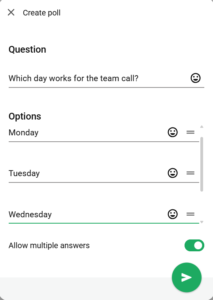
The poll form in WhatsApp Web: only Allow multiple answers, on by default. WhatsApp Web, Chrome 157, November 2026.
Single choice or multiple answers: which to pick
The Allow multiple answers setting determines if a person can pick one option or several. In the app, it is on by default, so people can pick several options. Turn it off when you need one final answer. You cannot change this setting after you post the poll.
Use this simple rule:
- Single choice (setting off): when the group must make one decision. For example, where to go for dinner.
- Multiple choice (setting on): when more than one answer can be true. For example, all the dates that work for someone.
Example 1: a poll for dates. Put each date in a separate option. Add the time inside the option, for example “Friday, 7 pm” and “Saturday, 11 am”. Leave Allow multiple answers on. Each person ticks every date that works for them, and the date with the most votes wins.
Example 2: a yes or no poll. Add two options, “Yes” and “No”. Turn Allow multiple answers off, so nobody can vote for both.
When multiple answers are off, a new tap moves the vote. If a person taps another option, WhatsApp removes their earlier choice.
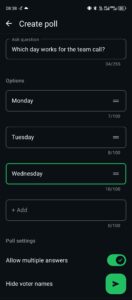
Poll settings in a group: Allow multiple answers is on by default; the other two are off. WhatsApp 2.26.42.74, Android 14, November 2026.
Can you edit or delete a WhatsApp poll after sending?
You can edit only the question, and only within 15 minutes after you send the poll. You cannot edit or remove options, and you cannot change the settings. If an option has a mistake, delete the poll and create a new one.
On Android, you can add a new option, though. Under your poll, tap + Add option, type the option and confirm. Only the person who created the poll can do this. WhatsApp marks the poll as Edited. It also posts a short note in the chat, so everyone sees the new option. In our test, this button did not appear on iPhone or in WhatsApp Web.
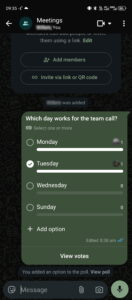
A group poll after the creator added “Sunday”: the poll shows Edited, and the chat shows a note. WhatsApp 2.26.42.74, Android 14, November 2026.
To edit the question on Android, press and hold the poll. Then tap the pencil icon at the top of the screen. Fix the text, then tap the send arrow. The WhatsApp Help Center describes these steps.
On iPhone, press and hold the poll and tap Edit. Fix the text, then tap the check mark.
On a computer, click the poll, then click Edit. Fix the text and click the check mark.
To delete a poll for everyone:
- Press and hold the poll in the chat.
- On Android, tap the trash icon at the top. On iPhone, tap Delete first, then the trash icon at the bottom left.
- Tap Delete for everyone. To remove it only on your phone, tap Delete for me.
On a computer, click the small arrow in the top right corner of the poll. Then click Delete the trash icon, and select Delete for everyone or Delete for me.
You have two days after sending to use Delete for everyone. This limit comes from the Help Center page on deleting messages. After that, you can delete the poll only for yourself. In the chat, WhatsApp replaces the poll with the note “This message was deleted”. Note that some people may see the poll before you delete it.
In a group, admins can also delete a poll from another member. They also have two days to do this. Members then see which admin deleted it.
How to end a poll: In a group on your phone, you can set an end time before you send. Voting then closes at the time you chose. If you did not set one, send a short message in the chat. For example: “Thanks, voting is closed. We meet on Friday.”
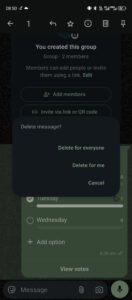
The Delete message dialog after you tap the trash icon. WhatsApp 2.26.42.74, Android 14, November 2026.
What WhatsApp polls can and cannot do (tested in 2026)
Polls work almost the same on Android, iPhone and a computer. Two settings exist only on the phone and only in groups. We checked the features on all three in November 2026. Some things we could not test ourselves, such as the two-day limit. For those, the table follows the WhatsApp Help Center.
| Feature | Android | iPhone | WhatsApp Web and desktop |
| Poll in a private chat | Yes | Yes | Yes |
| Poll in a group chat | Yes | Yes | Yes |
| Allow multiple answers | Yes, on by default | Yes, on by default | Yes, on by default |
| Hide voter names | In groups only | In groups only | No |
| Set end time | In groups only | In groups only | No |
| Edit the question (within 15 minutes) | Yes | Yes | Yes |
| Delete for everyone (within two days) | Yes | Yes | Yes |
| Maximum answer options | 12 | 12 | 12 |
Source: WhatsApp Help Center, Android, iPhone and web versions of the page, read in November 2026. Our test: WhatsApp 2.26.42.74 on Android 14, WhatsApp 2.26.40.77 on iOS 26.5.2, WhatsApp Web in Chrome 157. Actual as of November 2026.
Polls also have no free-text answers. People can only pick from the options. On Android, the poll creator can add new options after sending with + Add option. Other people cannot. In our test, iPhone and WhatsApp Web did not have this button.
Where is the Poll option in WhatsApp, and why can it be missing?
The Poll option is in the attachment menu next to the message field. On Android, tap the paperclip icon. On iPhone and on a computer, tap or click the plus icon. See the full steps for Android and iPhone above.
If you do not see Poll in the menu, the cause is usually one of these three:
- Your WhatsApp app is old. Update WhatsApp in Google Play or the App Store, then open the menu again.
- Your phone system is old. Very old Android or iOS versions may not get new WhatsApp features. Check if your phone can install the latest WhatsApp update.
- Only admins can send messages in the group. In this case, regular members cannot post anything, including polls. Ask a group admin to post the poll, or to change the ” Send new messages in the group ” permission.
If Poll is in the menu but does not work, the Help Center suggests a few simple fixes: restart your phone, update WhatsApp and your phone system, and switch between Wi-Fi and mobile data.
Can you create an anonymous poll on WhatsApp?
Not entirely. By default, everyone in the chat can see who voted for which option. The Hide voter names setting hides the names, but it does not make the poll a secret vote.
Here is how the setting works. It is available only in group polls, and you turn it on before you send. After that, nobody sees who voted for what, and this includes you as the poll creator. Everyone still sees how many votes each option got. The Help Center says this setting only changes what the results screen shows.
So a hidden name is not the same as an anonymous poll. People vote from their own WhatsApp accounts. In a small group, it is often easy to guess who voted how.
A poll in a chat is not a good choice for:
- questions about salary or money;
- feedback about a manager or a teacher;
- questions about health or other private topics.
For these, use a separate anonymous form and share the link in the chat.
How to send a WhatsApp poll via API
A business can also send a poll from its own system, such as a CRM or a chatbot. In GREEN-API, a poll is one SendPoll request to the HTTP API. The votes come back to your server as notifications.
GREEN-API is a WhatsApp API gateway. You connect a WhatsApp number in the console and get an instance. An instance is one WhatsApp number connected to GREEN-API in the console.
Send a poll with one request
Send a POST request to the SendPoll method. Put the chat address in chatId, the question in message, and the answers in options:
POST {{apiUrl}}/waInstance{{idInstance}}/sendPoll/{{apiTokenInstance}}
{
"chatId": "<country code><phone number>@c.us",
"message": "Which day works for the team call?",
"options": [
{"optionName": "Monday"},
{"optionName": "Tuesday"},
{"optionName": "Wednesday"}
],
"multipleAnswers": false
}
The response contains the ID of the sent message:
{"idMessage": "<message id>"}
The idMessage only means that GREEN-API accepted the request. The delivery result comes later, in an outgoingMessageStatus notification. For example, the status noAccount means that the chatId does not belong to any WhatsApp account. To get these notifications, turn on Receive webhooks on sent message statuses in the instance settings.
The limits are close to the app. You can add 2 to 12 options. The question can be up to 255 characters, and each option up to 100. Options must not repeat. One difference: in the API, multipleAnswers is false by default, while in the app multiple answers are on by default. For a group, put the group ID in chatId. See the Chat ID format.
A group ID looks like <group ID>@g.us. You do not create it yourself: the API returns it, for example when you create a group or get a message from it.
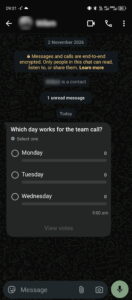
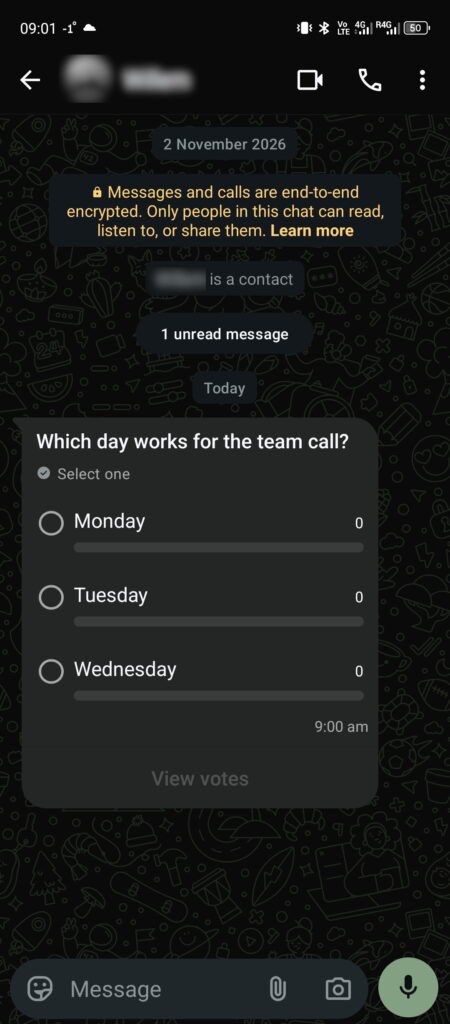
A poll sent with SendPoll and multipleAnswers set to false, so the chat shows “Select one”. WhatsApp 2.26.42.74, Android 14, November 2026.
Get the votes with webhooks
When someone votes, GREEN-API sends a notification to your webhook URL. To get it, open the instance settings in the console. Turn on Receive webhooks for incoming messages and files. Also turn on Get notifications about surveys, which is the setting for polls. You can also turn them on with the incomingWebhook and pollMessageWebhook settings. Learn more about receiving notifications.
A vote comes as an incoming message with the type pollUpdateMessage. The stanzaId field matches the idMessage of your poll. The votes array shows each option and who voted for it:
"pollMessageData": {
"stanzaId": "<poll idMessage>",
"name": "Which day works for the team call?",
"votes": [
{"optionName": "Monday", "optionVoters": ["<voter number>@c.us"]},
{"optionName": "Tuesday", "optionVoters": []},
{"optionName": "Wednesday", "optionVoters": []}
]
}
Each notification shows the full current result, not only the last vote. If someone removes or changes a vote, their number simply disappears from that option.
See the full format in the poll update notification reference.
Send polls only to people who agreed
A poll is a message. Send it only to people who agreed to get messages from you. Provide them with an easy way to stop getting the messages. If you send a poll to a group, every member gets it. So you need consent from every member, not only from one customer.
This follows the WhatsApp Business Messaging Policy. It allows businesses to message people only if they shared their number and agreed to receive messages. It also requires you to stop when a person asks.
GREEN-API cannot promise that WhatsApp will never block a number. You can lower the risk: get consent, keep sensible pauses between messages, and let people opt out. Read our tips to lower the risk of a number block.
You can test SendPoll on the free Developer plan. It works with up to 3 chats (plans, actual as of November 2026). Sign up in the GREEN-API console to get your first instance.
Frequently asked questions
How do I vote in a WhatsApp poll?
Open the chat and tap the option you want. Your vote counts immediately. To remove your vote, tap the same option again. To change it, tap another option. If the poll allows only one answer, WhatsApp removes your old choice.
To see the results, tap View votes under the poll. You see how many people picked each option. You also see who voted for what, unless the creator turned on Hide voter names. In that case, you see only the numbers. If the creator set an end time, you cannot vote after that time.
Can you create a poll on WhatsApp Business?
Yes. In the WhatsApp Business app, you create a poll with the same steps as in regular WhatsApp. This works in a private chat and in a group. If your business needs to send polls from a CRM or its own system, use an API. See How to send a WhatsApp poll via API above.
How many options can a WhatsApp poll have?
Up to 12 options. You need at least two; otherwise there is nothing to choose from. Each option can be up to 100 characters long. In practice, 3 to 5 options are easier to read. The votes also do not split between too many options. The limit is the same on all devices, as shown in the table above.
Can a WhatsApp poll have more than one question?
No. Each poll has one question and a list of answer options. People cannot type their own answer. Only the poll creator can add a new option after sending. If you need several questions, send several polls one after another. Note that fewer people answer each subsequent poll. For a long survey with free-text answers, use a separate online form. Share the link in the chat.