
Groups in WABA and in WhatsApp API
There are two ways to create a WhatsApp group via API: WABA (WhatsApp Business API) or WhatsApp API by GREEN-API. The two channels have different purposes. The difference is biggest for groups.
| WABA (WhatsApp Business API) | WhatsApp API by GREEN-API | |
|---|---|---|
| Availability | Meta’s Groups API. In GREEN-API, WABA does not support groups | Group methods on all plans |
| Who can use it | Official Business Accounts only | Any account connected to an instance |
| Member limit | Up to 8 | Up to 1024 |
| Adding members | Invite link only; people join themselves | Directly via API or with an invite link |
WABA is made for mass notifications and official messages. If you need large groups with dozens of members, use WhatsApp API by GREEN-API. It works like a regular WhatsApp account that is connected to your system.
What you can do with groups via API
WhatsApp API by GREEN-API has a separate method for each group operation. In this WhatsApp group management API, the main operations are:
- creating a group with CreateGroup, which returns the group ID and an invite link;
- adding and removing members with AddGroupParticipant and RemoveGroupParticipant;
- assigning and removing admins with SetGroupAdmin and RemoveAdmin;
- changing the name and picture with UpdateGroupName and SetGroupPicture: the name can have up to 100 characters, and the picture must be a JPG, preferably no larger than 640×640 pixels;
- changing settings with UpdateGroupSettings (beta): who can send messages and who can edit group info;
- getting group data with GetGroupData: the name, owner, member list with admin flags, and invite link;
- leaving a group with LeaveGroup.
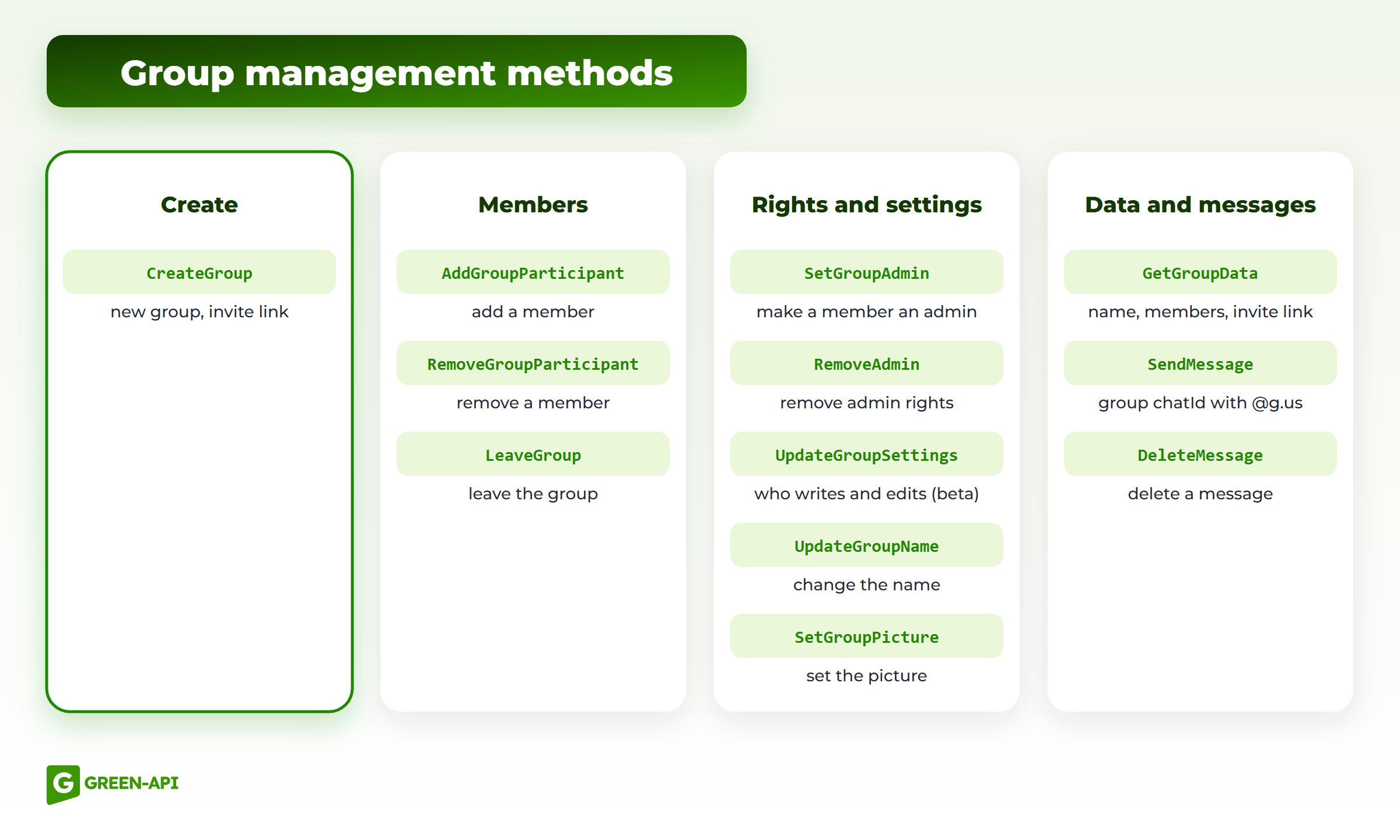
The documentation describes the parameters and responses of all group methods. You send messages to a group in the same way as to a personal chat. Use the group ID, which ends in @g.us, instead of a phone number.
Step by step: a group for a new course cohort
An online school starts a new group of students every month. Students pay for the course and appear in the CRM. The goal is to create their group automatically, make the coordinator an admin, and allow only admins to write in the chat until the first class.
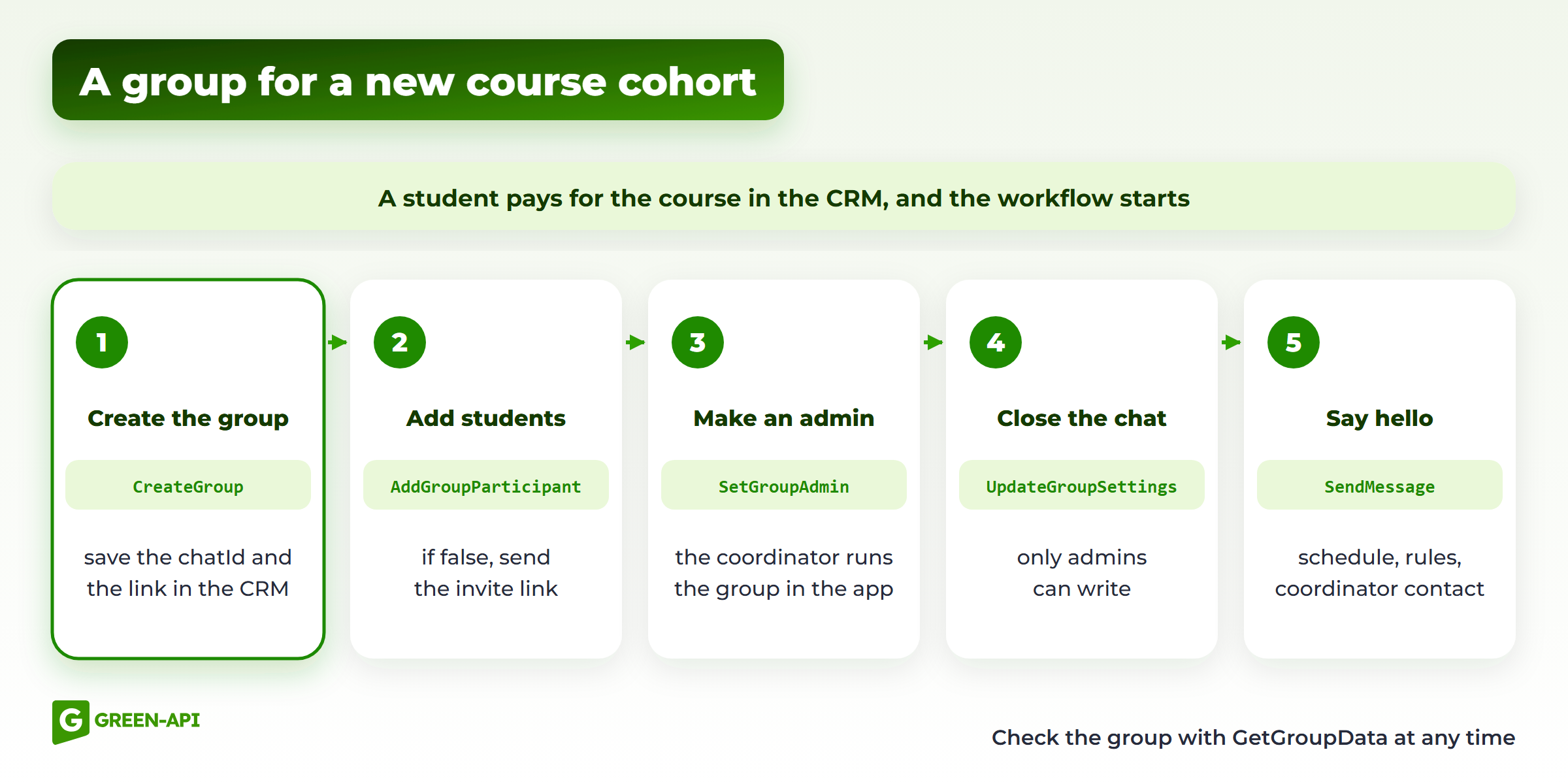
Step 1. Create the group
To create a group via API, pass a name and at least one member, such as the coordinator:
{
  "groupName": "Python, March cohort",
  "chatIds": ["12025550123@c.us"]
}
The response contains the group ID and an invite link. Save both in the CRM. You need the ID for all next requests, and you need the link for people you cannot add directly. If chatIds contains a number without a WhatsApp account or a group ID, the method returns a 500 error.
{
  "created": true,
  "chatId": "120363043968066561@g.us",
  "groupInviteLink": "https://chat.whatsapp.com/xxxxxxxxxxxxxxxxxxxxxx"
}
Step 2. Add members from the CRM
To add a participant to the WhatsApp group via API, send a separate AddGroupParticipant request for each student:
{
  "groupId": "120363043968066561@g.us",
  "participantChatId": "12025550178@c.us"
}
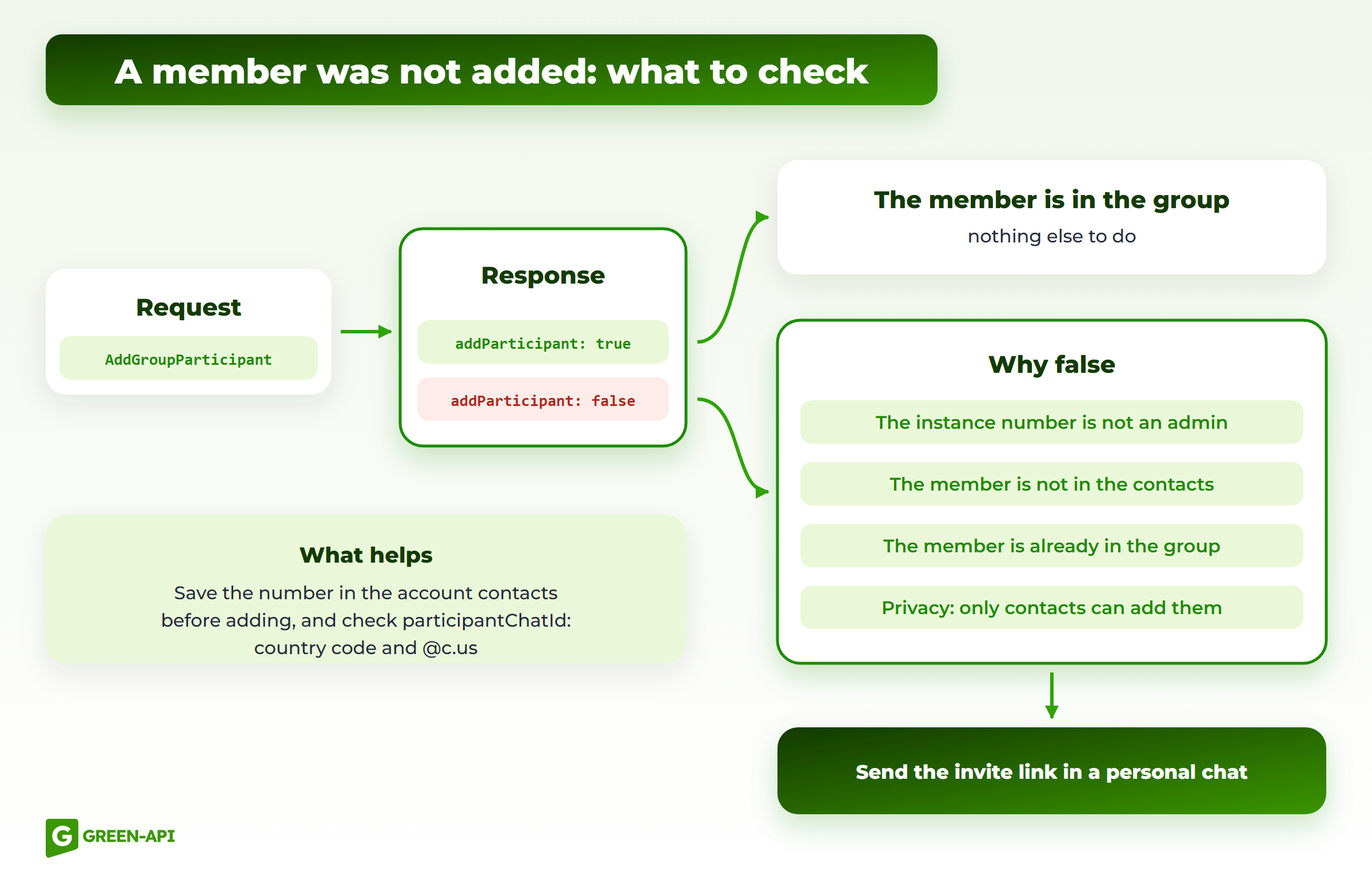
If the response is "addParticipant": false, send the student the invite link in a personal chat. We explain the reasons in the section about limits.
Step 3. Make the coordinator an admin
Send a SetGroupAdmin request with the same groupId and the coordinator’s number in participantChatId. The coordinator can then add students and change settings from the app.
Step 4. Turn on admin-only messaging
Send an UpdateGroupSettings request with allowParticipantsSendMessages: false:
{
  "groupId": "120363043968066561@g.us",
  "allowParticipantsSendMessages": false
}
Settings take effect within 5 minutes. The method is still in beta, so check the result with GetGroupData.
Step 5. Send a welcome message
Use a regular send-message request with the group ID as chatId. Include the schedule, chat rules, and the coordinator’s contact.
Moderating a WhatsApp group
Moderation via API is a set of actions that an admin can do. WhatsApp has no built-in filter. Your code or bot checks the rules, and the API does what your code decides.
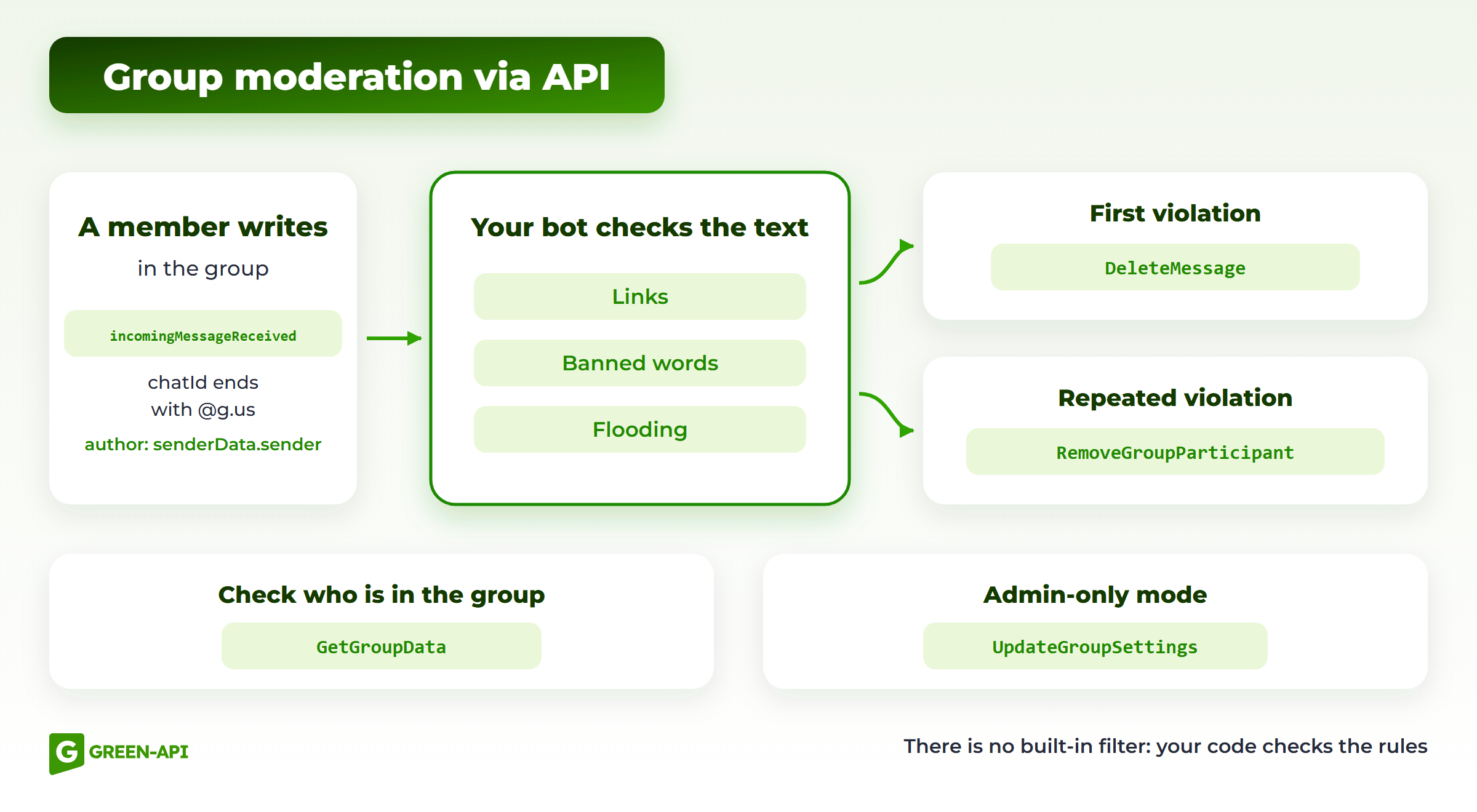
- Deleting messages. DeleteMessage deletes a message by its
idMessage. Only an admin can delete another member’s message in a group: without admin rights, the API returns a 400 error. A message is deleted for all chat members only within 60 hours after it is sent. After that, you can remove it only for the sender. WithonlySenderDelete: true, the message disappears only for the number connected to the API, and other members still see it. - Removing rule breakers. RemoveGroupParticipant removes a member from the group. If needed, you can add them back with AddGroupParticipant. A removed member cannot rejoin with an invite link: WhatsApp blocks this.
- Admin-only mode. With UpdateGroupSettings, you can allow only admins to send messages, for example during a webinar or at night. The method is still in beta, so verify the result.
- Tracking new messages. Group messages arrive in the
incomingMessageReceivedwebhook. A group message has achatIdending in@g.us, and its author is insenderData.sender. There is no separate webhook for members joining or leaving: check membership changes with GetGroupData.
A typical WhatsApp API group bot works like this. It receives a webhook and checks the text against your rules, for example links, banned words, or flooding. If a message breaks a rule, the bot calls DeleteMessage. If the same person breaks the rules again, the bot calls RemoveGroupParticipant. To check who is in the group, call GetGroupData. It returns the number of members and the full list with admin flags.
Limits and common errors
No more than one group every 5 minutes. The GREEN-API documentation says that you must act like a person when you create groups. If you create groups faster, WhatsApp returns the rate overlimit error. The app also shows a warning that you created too many groups.
A member was not added. AddGroupParticipant returns false in three cases:
- the number connected to the API is not a group admin;
- the member’s number is not in this account’s contacts;
- the person is already in the group.
Privacy settings are another reason. If a person allows only their contacts to add them to groups, you cannot add them directly. Send an invite link instead. Other causes are covered in why members aren’t added to a group.
The limit is 1024 members. We do not recommend groups with more than 1000 people, because message delivery can fail. If you have a larger audience, split it into several groups, for example by city or by course.
Only admins can make changes. Only an admin can add members, rename the group, or change settings. If the number connected to the API is not an admin, these methods return an error or false.
How to keep your number safe
WhatsApp checks automated group activity more carefully than regular chats. To keep your number working for a long time:
- Warm up the number. Before launch, a new account should behave like a regular user for a few days: receive messages, reply, and add contacts. The full process is in our guide to warming up a WhatsApp number.
- Keep a moderate pace. Pause between adding members, and do not create many groups in a row.
- Add only people who know you. Add students, clients, and members who shared their number themselves. If you add many strangers at once, people may complain, and WhatsApp may block your number.
A warning sign is when WhatsApp does not let you create groups or add members. If this happens, stop the automation and reduce your speed.
Groups in GREEN-API
Group methods are available on all WhatsApp API by GREEN-API plans. You can test the workflow on the free Developer plan. This plan is made for testing and lets you work with only 3 chats, and a group counts as one chat. To run dozens of groups, you need a paid plan.
To start quickly, use the Postman collection. It has all methods as ready requests. You can also use an SDK for Python, Node.js, Java, PHP, Go, and other languages.
FAQ
Can I add someone who is not in my contacts?
Sometimes you can, but it is more reliable to save the number in the account’s contacts first. If the person does not allow unknown numbers to add them to groups, you cannot add them directly. Send an invite link instead.
How many groups can I create?
The GREEN-API documentation limits how fast you create groups, not how many: no more than one group every 5 minutes. Each group is limited to 1024 members.
Can I create groups with WABA?
Not with GREEN-API: WABA does not support groups. Meta’s Groups API for WABA is available only to companies with an Official Business Account, and a group can have no more than 8 members. For large groups, use WhatsApp API.
How do I get an invite link?
The link is in the groupInviteLink field of the CreateGroup response. For an existing group, GetGroupData returns it if the instance number is the group owner, an admin, or a member who is allowed to send invite links. Otherwise the groupInviteLink field is empty.
Why did AddGroupParticipant return false?
The reasons are: the number connected to the API is not a group admin, the member’s number is not in the contacts, or the person is already in the group. Also check the participantChatId format: the number with the country code and the @c.us suffix.
How do I see who is in a group?
GetGroupData returns the member count and the member list. Each member has a flag that shows if the member is an admin.
Automate your WhatsApp groups with GREEN-API: create an instance and test the workflow on the free plan.