
What Is a Mass Message in Messaging Apps and What Types Exist?
A mass message in a messaging app is an identical or personalized message sent to a group of customers who have agreed to receive messages from you. Each recipient sees the message in a private chat, not a group chat and replies to you privately.
Based on their content, mass messages are divided into three types, and each has its own level of recipient tolerance:
- Transactional—order status, appointment reminders, payment confirmations. Customers actively expect these messages, so they generate the fewest complaints.
- Informational—changes to business hours, new terms and conditions, helpful instructions. These are read only if they are truly relevant to the recipient.
- Promotional—sales, discounts, new products. This is the riskiest type: if a person wasn’t expecting the message, they’ll click “Report” or block the number.
One rule applies to all three types: messages are sent only to those who have given their consent, and every message includes a clear way to unsubscribe.
Three ways to send a newsletter: manually, via a platform, and via an API
The method is chosen based on the size of the database: an app is sufficient for up to a couple hundred customers, while an API or platform is needed for thousands of contacts.
Method | What You Need | Limit on the Number of Recipients | Delivery Statistics | Name Placeholder | Cost |
Messaging app | Phone with an account, contacts in the address book | In WhatsApp*—up to 256 contacts in a single broadcast list; only those who have saved your number will receive the message (WhatsApp Help, 2026) | No, only read receipts in each chat | No | Free |
Messaging platform | Platform account, connected channel, uploaded database | Depends on the platform and channel | Usually available in the platform interface | Usually available | Platform subscription fee, sometimes plus a per-message charge |
Messenger API | Connected phone number or bot, developer, or ready-made CRM integration | There is no fixed list; limited by the messenger’s rules and pricing plan | Status of each message: sent, delivered, read, error | Yes, the text is populated from database fields | In GREEN-API: a free “Developer” plan for testing; the “Business” plan costs 690 ₽ per month per number |
Sending messages manually through the app works well for small businesses with regular customers who have had your number saved for a long time. This method has two limitations: the contact list limit and the saved-number rule. If you’ve uploaded contacts from a spreadsheet but your customers haven’t saved your number, the message won’t reach them, and the app won’t warn you about it.
A messaging platform offers a ready-made interface: upload your database, write your text, and click “Send.” It’s convenient for marketers who don’t have a developer. However, you’re limited by the channels and features supported by that specific platform, and you pay for the interface on top of access to the messenger.
A messenger API eliminates manual work entirely: messages are sent directly from your CRM or script, the customer’s name is automatically inserted into each one, and you receive a delivery status for each message. The upfront cost is a one-time integration setup. After that, sending a message to 50 contacts is just as easy as sending one to 5,000.
Which messaging app to use for your campaign
You should choose a channel not based on reach, but on how your business can best reach out to people. There are two ways: through a bot or through an account linked to a phone number. This determines whether a ready-made export of phone numbers from your CRM will work for you.
Channel | Via bot | Via phone number account | What you can send |
Official method — WhatsApp* Business API: message templates and recipient consent | Addressed by number from the database; the number is linked to the API via a QR code | ext, images, videos, documents, geolocation | |
Telegram | The bot cannot initiate a conversation: the user must start it themselves. Messages are sent based on the chat ID, not the phone number | Messages are sent based on the phone number if the recipient has a Telegram account and the number is not hidden by privacy settings | Text, images, videos, documents |
MAX | The bot contacts the user via their MAX ID; the user accesses the bot via a link | We contact the user by phone number if the recipient has a MAX account | Text, images, videos, documents |
Conclusion for owners of phone number databases: a bot is a good fit when customers come to it on their own—via a link on the website, a QR code at the register, or a button in an email. If you already have phone numbers from your CRM, you can send messages through your account using those numbers. The recipient’s consent is required in both cases.
Messaging on WhatsApp
WhatsApp* is the channel where it’s most convenient to work with an existing contact list: messages are sent based on phone numbers. A phone number is connected to the API the same way it is to WhatsApp* Web—by scanning a QR code. For large businesses that need message templates and a verified profile, there’s the official WhatsApp Business API.
Messaging on Telegram
On Telegram, the key decision is whether to use a bot or an account. A bot cannot initiate a conversation on its own: a user must click “Start,” and only then can the bot message them. Therefore, a bot is best suited for a subscriber base that you’re building from scratch. If your database consists of phone numbers, you’ll send messages through an account.
Messaging on MAX
MAX follows the same model. A company registers a bot on the MAX platform for partners; the bot addresses users by their ID, and people access the bot via a link. Through an account, messages are sent to phone numbers. For more details on the options, see the article on connecting your business to the MAX messenger.
How to Set Up a Messaging Campaign via API: A Step-by-Step Guide
Setting up a messaging campaign via API takes six steps: from connecting a phone number to generating a report for each message. Below is the sequence using GREEN-API and WhatsApp* as examples; the steps are the same for Telegram and MAX—only the method for verifying phone numbers differs.
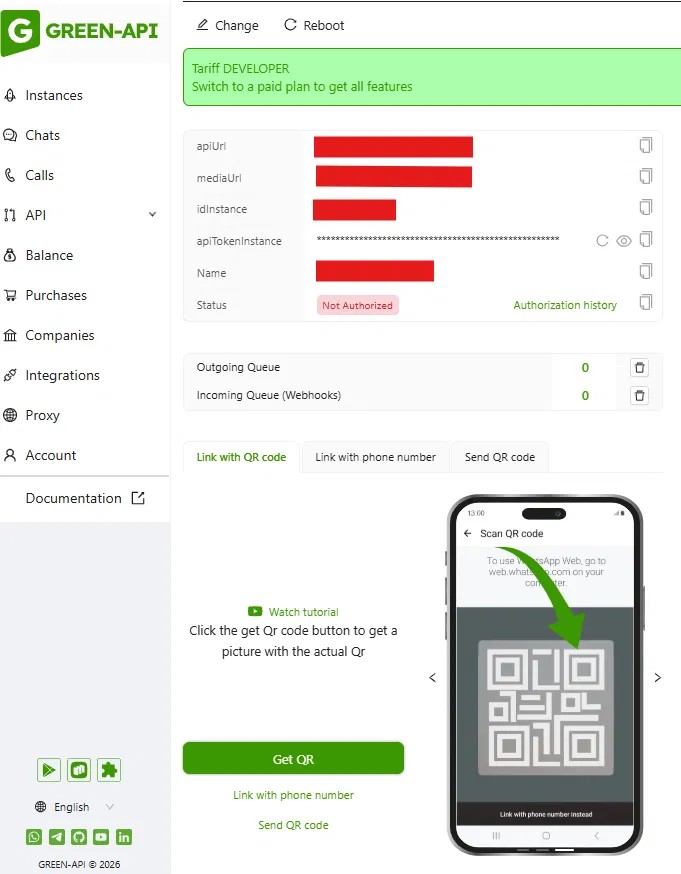
- Create an instance. An instance is a connection between a single phone number and the API. You create it in the console at console.green-api.com, and immediately receive three parameters for requests: apiUrl, idInstance, and apiTokenInstance.
- Connect the phone number. Scan the QR code from the console with your phone—just as you would when logging into WhatsApp* Web. If scanning is inconvenient, click “Link by Phone Number” in the console and enter the code you received in the WhatsApp* app: “Linked Devices” → “Link Device” → “Link by Phone Number.” The code is valid for about 2.5 minutes. After authorization, the instance’s status changes from “Not Authorized” to “Authorized,” and the instance operates on behalf of your number. For details, see the documentation on connecting an instance and sending messages.
- Check the numbers in your database. The CheckWhatsApp method determines whether a number has a WhatsApp* account. In Telegram and MAX, the CheckAccount method performs the same task. It’s best to remove numbers without an account before sending a broadcast: messages won’t reach them anyway. Enter numbers in international format: Russian numbers start with 7, not 8. The free plan includes 100 CheckWhatsApp checks per month; the “Business” plan includes 30,000.
- Send a test message. The text is sent using the SendMessage method. First, send a message to your second number and make sure it arrives.
- Add an image or file. The SendFileByUrl method sends a file via a link. The file type is determined by the extension in its name (the fileName field), so be sure to specify a name with the correct extension, such as price.pdf.
- Retrieve delivery statuses. Enable “Receive notifications about the status of sent messages” in the instance settings—either in the console or using the SetSettings method. Without this setting, status updates will not be received, and for messages sent before it was enabled, they will not be updated. For information on how to interpret the statuses, see the section “How to Tell If a Message Was Delivered.”
Example request for sending text:
curl —location ‘{{apiUrl}}/waInstance{{idInstance}}/sendMessage/{{apiTokenInstance}}’ \
—header ‘Content-Type: application/json’ \
—data ‘{
“chatId”: “79876543210@c.us”,
“message”: “Anna, your order #1042 is ready for pickup. To unsubscribe from notifications, reply with ‘Stop’.”
}’
In the message, “Anna” and the order number are replaced with values from your database. Ready-made clients for Python, Node.js, PHP, and other languages are available in the SDK section.
What can be included in a single message: text, an image, a video, or a document. Text length: up to 20,000 characters on WhatsApp\*, up to 4,096 on Telegram, and up to 4,000 on MAX. The maximum file size is 100 MB. Previews are not generated for images larger than 3,000×3,000 pixels.
If you need to integrate a mailing list into your customer service workflow, check out the messaging apps’ mailing tools that operate with recipients’ consent.
You can test how the integration works using the free “Developer” plan at console.green-api.com. This plan provides access to one instance and messaging with three chats—that’s enough to complete all the steps above using your own phone numbers.
How to Reduce the Risk of Your Number Being Blocked
Sending bulk messages isn’t prohibited in and of itself—restrictions are imposed based on the sender’s behavior. The messenger tracks how many messages are sent to people who weren’t expecting them, how many go unanswered, and how many recipients file complaints. No one can guarantee you won’t get banned: WhatsApp’s* Terms of Service explicitly prohibit automated and mass messaging, and any service that promises otherwise is lying.
Since October 2025, WhatsApp* has been testing a monthly limit on messages sent to people who haven’t responded. The company doesn’t disclose the exact number, but displays a warning in the app when you’re approaching the limit. The conclusion is simple: a message that gets a reply doesn’t count toward your limit; a message that goes unanswered does.
Here’s how to reduce the risk:
- Only message those who have given their consent. A contact list purchased or compiled without permission is the main cause of complaints.
- Clean up your contact list before sending. Remove numbers without a messenger account and those who have already unsubscribed. Check each number only once: the system notices frequent re-checks of the same numbers.
- Give them a reason to reply. A question, a button, or a request for confirmation—a reply turns the mailing list into a conversation.
- Send at intervals. Don’t send the entire database in a minute; in GREEN-API, the speed is set by configuring the message sending interval.
- Personalize the text. Name, order number, appointment date—the message should be addressed to a specific person.
- Keep the unsubscribe option to one line. “Reply ‘Stop’ to stop receiving messages”—and fulfill this request immediately.
How to Tell If the Broadcast Was Successful
When sending via the API, a status is returned for each message, whereas with manual sending, there is no summary report at all. In GREEN-API, the status is returned via the outgoingMessageStatus webhook, provided that notifications about the status of sent messages are enabled in the instance settings:
Status | Meaning |
sent | Message sent |
delivered | Delivered to the recipient’s phone |
read | Read, viewed or listened to |
failed | Error sending to the messaging server; the reason is specified in the “description” field |
noAccount | The number does not have an account in the messaging app |
These statuses add up to four numbers that you should check after each mailing: how many were delivered, how many were read, how many weren’t sent, and how many people replied or unsubscribed. Replies appear as incoming notifications, and the list of sent messages can be exported from the log using the LastOutgoingMessages method—by default, this covers the last 24 hours, with the time period specified in minutes. For more details, see the section on message statuses and sending statistics.