
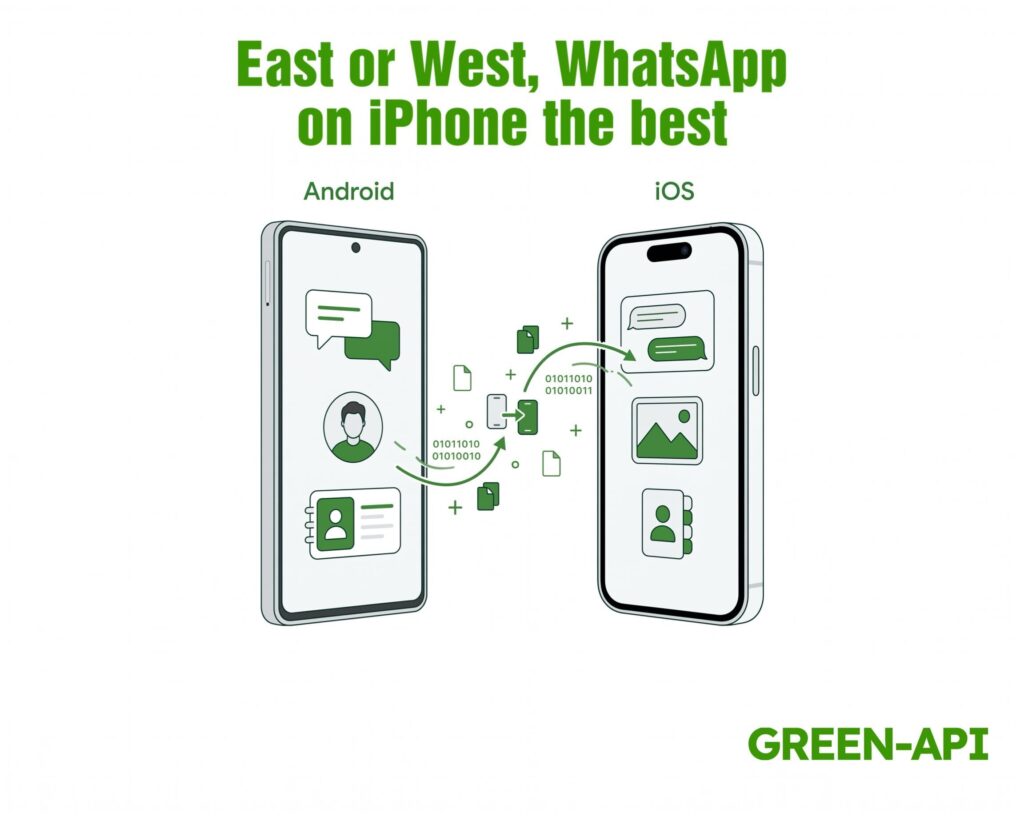
Few people know that if you decide to switch from Android to iOS, you can take your WhatsApp chats, media files and settings with you. To make the process easier, the system offers the “Move to iOS” app, which helps keep your data safe.
In this article, we’ll break down how this process works, what you need to know before you start, and which data can be transferred and which cannot.
Table of Contents
What you can and can’t transfer
The app lets you transfer your chat history from Android to iOS, including individual and group chats, communities, media files, profile photos, and settings. However, there are some limitations; for example, Move to iOS doesn’t allow you to transfer your call history from the messaging app. Also excluded are group media files and display names. Therefore, before you begin the process, we recommend familiarizing yourself with the options the app offers.
What you need to know before you begin
To get started, you’ll need a device running Android 5 or later. The requirements for an iPhone are slightly different—your phone must be running iOS version 15.5. WhatsApp on both devices must be updated to the latest version. The next step is to install the Move to iOS app from the App Store on your Android device. Your new iPhone must be brand new or reset to factory settings, since data transfer is only possible before you start using WhatsApp on your iPhone; both devices must be plugged into a power outlet and connected to the same Wi-Fi network.
How to transfer chats: step-by-step guide
After downloading, open the Move to iOS app on your Android device and follow the on-screen instructions. A code will appear on your iPhone; enter it on your Android device only after the Move to iOS app prompts you to do so. Make sure you’ve selected WhatsApp on the data transfer screen. Tap “Start” on your Android device and wait for WhatsApp to begin the process, which will end your session on Android.
Tap “Next” in Move to iOS to go back, then select “Continue” to start the data transfer. Wait for the app to notify you that the process is complete. Once finished, install the latest version of WhatsApp on your iPhone, open it, and sign in with your phone number. Wait a moment for the process to complete. After that, open WhatsApp on your iPhone—your chats and data will automatically sync to your new device.
What happens to your data during the transfer
Once you’ve created a backup, the Move to iOS app will save your chat history to iCloud. WhatsApp cannot see what you’re transferring, as this is protected by your privacy settings. Your Android device retains the data after the transfer. This means that nothing will be deleted from your Android phone until you personally uninstall WhatsApp or reset the device to factory settings.
What if…
If WhatsApp is already running on your iPhone, you won’t be able to transfer chats to it. To restore your chat history, you’ll need to reset your iPhone to factory settings, reinstall WhatsApp on your Android device, and restart the transfer process. Unfortunately, it’s not possible to merge your old Android chats with your new iPhone chats. If your new iPhone has a different phone number, you won’t be able to transfer the data. You’ll need to change the phone number on your Android device.
If you see an error message like “Something went wrong” or “Unknown error,” it may mean your chat history has been deleted. You can restart both devices and try again.
Conclusion
Transferring data from Android to iOS doesn’t seem particularly complicated. The key is to select the correct settings and follow the instructions. If you do everything right, the process will be much easier and faster.
At GREEN-API, we keep track of all WhatsApp updates to provide you with the latest news and solutions for automating your business processes. Stay tuned to stay up to date on all the latest developments!