
What is the MCP for?
To put it simply, MCP is often described as a universal adapter for the AI world—a single protocol that allows any compatible assistant to connect to any external tool. It is on this standard that GREEN-API has built its own MCP server, which gives Claude and ChatGPT direct access to WhatsApp. It is available without complex technical code, configurations, or unnecessary intermediaries.
How the GREEN-API MCP server works
The key advantage of GREEN-API’s solution lies in its architecture. The server is already deployed and running in the cloud, which means users don’t need to install anything on their computers. No additional software or command lines are required. Authorization occurs in a browser using your instance number in your GREEN-API account—the process is similar to logging in to any other online service.
After successfully connecting, the AI assistant gains access to three core features: receiving incoming and sending outgoing messages on WhatsApp, as well as working with the WhatsApp API methods provided by GREEN-API.
Adding a custom MCP server to Claude Desktop
To work with Claude, you’ll need three components: a GREEN-API account on one of the pricing plans with an authorized instance in your GREEN-API dashboard, an account on the Claude platform, and the Claude Desktop application installed, which you can download from the official website.
This connection method is implemented via a configured GREEN-API server using OAuth authentication based on the instance number. This method does not require installing any additional packages on your local machine, the server is already deployed and accessible at mcp.green-api.com.
To get started, go to the Claude Desktop app settings, navigate to the Customize → Connectors section, and add a new connector by clicking the “+” button and selecting “Add connector.” In the pop-up window, specify two key parameters: the GREEN-API server name and the server address https://mcp.green-api.com/mcp
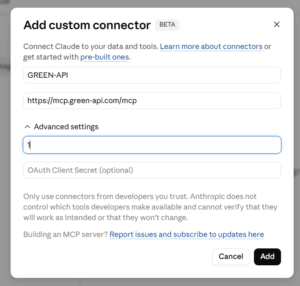
In the advanced settings, there is a field for the instance number: you must enter at least one character here, but keep in mind that you’ll have to fill this field out again each time you authenticate. It’s best to leave the OAuth Client Secret field blank during initial setup—your instance’s token will be stored there later in the authentication process.
Connecting your account to the MCP server
After saving your settings, go to the Connectors tab, select the GREEN-API tab, and click the Connect button.
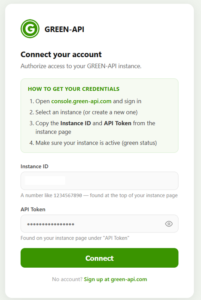
If you haven’t entered your API Token in advance, the browser will automatically open an authorization window: enter the Instance ID and API Token from your GREEN-API account in that window.
Attention!
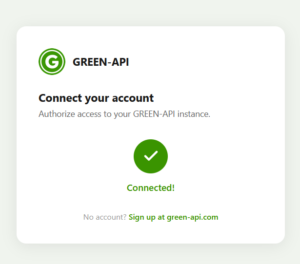
After you log in successfully, the system will prompt you to configure the agent’s permissions, specifying which actions the agent can perform independently and which will require separate confirmation if they are not secure.
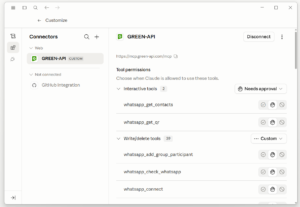
Checking connection
To verify that the connection is established, simply create a new chat and ask the agent in any format to check the status of the WhatsApp instance. The agent may request additional authorization and will then confirm that the instance is authorized and functioning properly.
The first message via the MCP server is sent the same way as a regular chat request: simply write to the agent in any format, specifying who to send the message to and what to send, and include the recipient’s WhatsApp number.
As you can see, there’s nothing complicated about connecting, configuring, and executing scenarios via the GREEN-API MCP server.
Connecting to ChatGPT
Connecting the GREEN-API MCP server to ChatGPT is just as simple, and—what’s especially convenient—this option is available on three platforms at once: the web version of ChatGPT, as well as the mobile apps for iOS and Android. In all these cases, the connection takes just a few clicks: after authorizing with the GREEN-API instance credentials, the agent gains the same capabilities as in Claude—sending text messages and receiving incoming messages directly within the ChatGPT interface.
We’ve prepared a step-by-step video demonstration of the setup process for each platform in a separate video on our YouTube channel, which clearly shows the entire process for the web, iOS, and Android versions of the app.
What AI can do after integration
Regardless of whether you choose the Claude or ChatGPT assistant, the workflow for interacting with WhatsApp via MCP follows the same principle: you formulate a task, the AI assistant processes it, and, if necessary, requests your confirmation before sending it.
There’s one important detail here: nothing is sent through WhatsApp without your approval, which is especially valuable in business correspondence, where the cost of a mistake is high. The AI assistant becomes not just a conversation partner in a separate window, but a full-fledged participant in your work communication.
Conclusion
We’ve explained how to set up your own MCP server and integrate it with artificial intelligence, using Claude and ChatGPT as examples. When paired with GREEN-API, these tools enable you to use an AI assistant to manage your instance, send and receive messages and files, work with logs, contacts, groups, and much more.
Using WhatsApp’s features, you can tackle complex tasks. All the tools interact with each other easily and logically, delivering the desired results. With the help of queries, you can easily manage your conversations in WhatsApp.
At GREEN-API, we keep up with the latest news and will keep you informed about all significant updates. We’re also constantly working on implementing new features into our service to make your work more convenient. Follow our blog to stay informed about new and useful features in WhatsApp!