
WhatsApp developers designed the app to store chat history locally on the device, rather than on the company’s servers, as is the case with Telegram. This means that one wrong move when changing your phone number and your entire chat history, including personal files, could vanish without a trace. And many people only realize this after it’s already happened.
In reality, the situation isn’t that dire, since WhatsApp has long provided tools for transferring data, and they’re built right into the app. However, each scenario has its own steps and details that you need to pay attention to. Let’s go through them one by one.
Table of Contents
Backing up chats
Before you begin, make sure that
- The new SIM card is inserted in your phone and you can receive SMS messages
- You have access to your old number; you’ll need it for verification
- WhatsApp is updated to the latest version
- A backup of your chats has been created
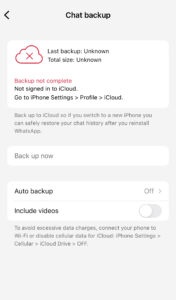
Before you begin, make sure chat backup is enabled. To do this on iOS, go to WhatsApp settings, then tap “Chats” > “Backup” > “Back up now.” Make sure your Apple ID is signed in and there is enough space in iCloud.
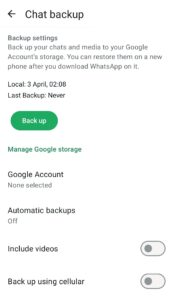
On Android, tap the three dots in the top-right corner, then go to “Settings” > ‘Chats’ > “Chat backup” > “Back up now.” The backup will be saved to Google Drive, so make sure you’re signed in to your Google account.
Changing your phone number
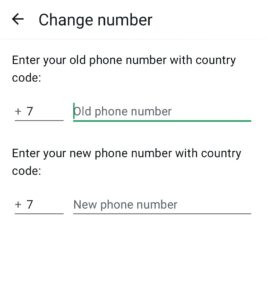
In this scenario, you keep the same smartphone and simply switch SIM cards. WhatsApp has a built-in “Change number” feature for this purpose; it works the same way on both iOS and Android.
For iOS
- Open WhatsApp and go to Settings (the gear icon or the bottom menu).
- Tap “Account” > “Change phone number.”
- Read the warning and tap “Next.”
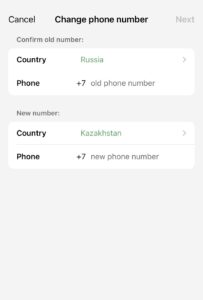
- Enter your old number in the top field and your new number in the bottom field. Both should be in the international format +7.
- Select how you want to notify your contacts and tap “Next.”
- Enter the code from the SMS that will be sent to your new number. Tap “Done.”
For Android
- Open WhatsApp, tap the three dots and select “Settings.”
- Go to “Account” > “Change phone number.”
- Tap “Next,” enter your old number in the first field and your new number in the second.
- Select how you want to notify your contacts and tap “Next.”
- Verify your new number with the code from the SMS. Tap “Done.”
What data is transferred
Regardless of the method, WhatsApp developers have not provided for the transfer of all data. It’s best to know this in advance before you begin. The data that can be transferred includes
- Individual and group chats, including text messages
- Media files, including photos, videos and voice messages
- Documents and attachments in chats
- Personal profile information, such as name, photo and status
- Group membership and privacy settings
Data that cannot be transferred includes:
- Call history
- Payment history
- Display name when switching from iOS to Android
- iCloud backups when switching to Android
- Some notification settings
Common mistakes
- “Unable to restore backup”
Restoration only works if both the Google account or Apple ID and the phone number match. If a different account or number is registered on the new device, the backup may not be found. Check both settings before proceeding.
- The transfer option has disappeared from the menu
This means that WhatsApp has already been launched on the new device and has received messages. The only solution is to reset the phone to factory settings and start the transfer process over.
- The transfer is frozen or interrupted
Most often, the cause is a weak Wi-Fi connection, one of the phones being locked during the transfer, or a faulty cable. Check the connection, unlock both screens, and try again. When transferring via cable, make sure it is securely connected to both devices.
- Want to change your number and phone at the same time
It is extremely important to follow the correct order here. First, you need to change the number on the old device using the “Change number” feature, as described at the beginning of the article. Then, create a backup and transfer the data to the new phone. Violating this order may result in the backup remaining linked to the old number, and it will not restore when you log in from the new one.
Conclusion
WhatsApp is designed so that every step matters. The wrong sequence of actions could cost you years of chat history. To prevent this from happening, just remember a few simple rules:
- Always back up your data
- If you’re changing both your number and phone, change the number on your old device first
- Don’t open WhatsApp on your new phone prematurely
- Don’t lock your screens during the data transfer
- Use the same Google account or Apple ID on your new device
The tips and advice above will help you avoid losing your WhatsApp data and transfer it seamlessly when changing your number and device. GREEN-API stays up to date on the latest WhatsApp news and shares the most important updates on its corporate blog. We are constantly working to implement new features into our service to make your work more convenient.
GREEN-API – your guide to the world of technology and communication!