Setting up n8n and Telegram integration#
The GREEN-API platform has its own app on the n8n service. We currently recommend using a local installation of n8n.
Integration setup procedure:
- Installing nodejs
- Installing ngrok
- Creating an instance in GREEN-API
- Installing the GREEN-API community node
- Examples of using the GREEN-API application
1. Installing nodejs#
- Download and install Node.js LTS
- Verify successful installation by typing
node -vin the command line - Install n8n by typing
npm install n8n -gin the command line - Run n8n by typing
n8nin the command line - The console will be accessible at
http://localhost:5678
2. Installing ngrok#
For the webhook server to work, it must be accessible from the outside. To do this, install ngrok or an equivalent.
- Download and install ngrok
- Run ngrok – in the command line, type
ngrok http 5678 -
The network server address will be obtained. Pass it to n8n via the
WEBHOOK_URLenvironment variable and start n8n:- In the Command Prompt (cmd):
set WEBHOOK_URL={received address}&& n8n start - In PowerShell:
$env:WEBHOOK_URL="{received address}"; n8n start - If you run n8n with Docker or Docker Compose, you can set the
WEBHOOK_URL={received address}parameter in the.envfile
Start n8n in the same terminal window where the
WEBHOOK_URLvariable is set — the variable does not apply in other windows. - In the Command Prompt (cmd):
3. Creating an instance in GREEN-API#
To use the GREEN-API application, you need to obtain a registration token and instance ID in console. For testing, we recommend using the free developer plan.
- Log in or register for an account with GREEN-API
-
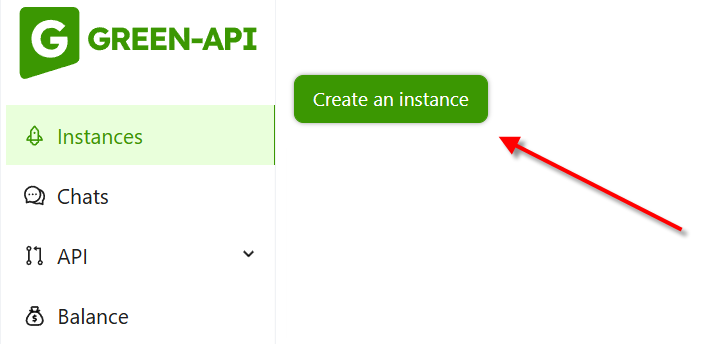
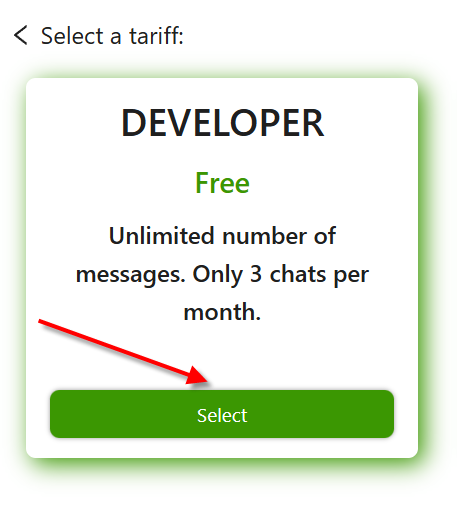
Create a Telegram instance on the free "Developer" plan. To do this, in console, click the
Create instancebutton and select a plan
-
Authorize the instance. To do this:
-
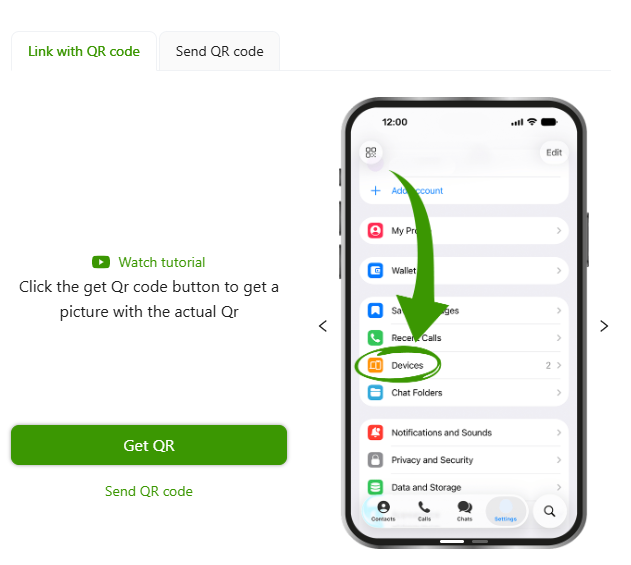
You can scan the QR code on the instance setup page.
In the Telegram mobile app, open the Devices section and scan the QR code received by clicking theGet QRbutton.
-
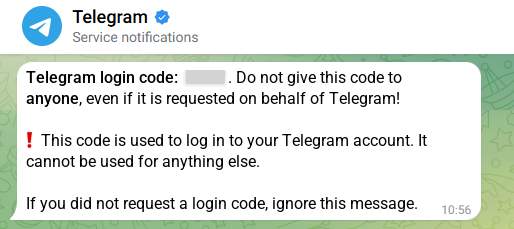
Or authorize by authorization code. Request the code using the
StartAuthorizationmethod — the code will arrive in the Telegram service chat or by SMS. Send the received code using theSendAuthorizationCodemethod. If your account is protected by a password, also specify it in thepasswordfield.
We recommend authorizing by QR code. Learn more about authorization methods in the Before you start section
After successful authorization, the instance should receive the
Authorizedstatus. You can check the instance status using the methodGetStateInstance -
-
Copy the
idInstanceandapiTokenInstancevalues for further use with n8n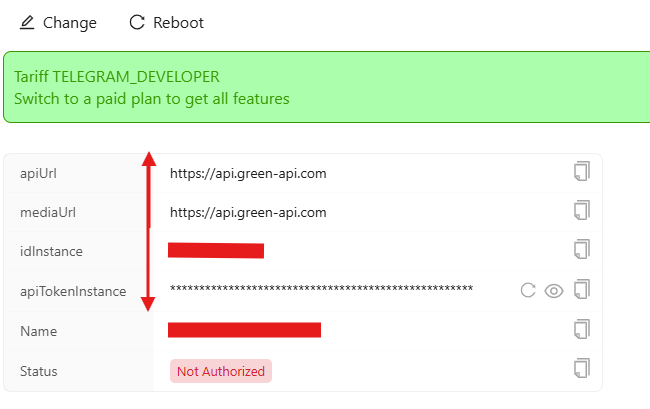
4. Installing the GREEN-API community node#
Go to the n8n page at http://localhost:5678.
-
In the lower-left corner, click
Settingsand selectCommunity nodes(theIntegrationssection) in the menu that opens.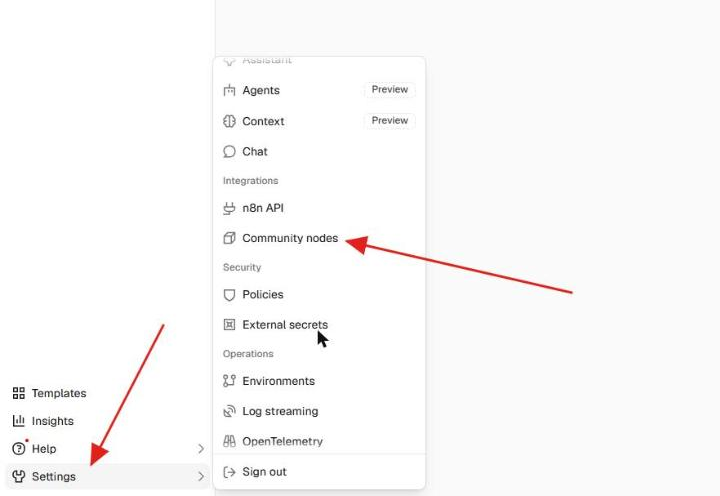
-
Click the
Install a community nodebutton.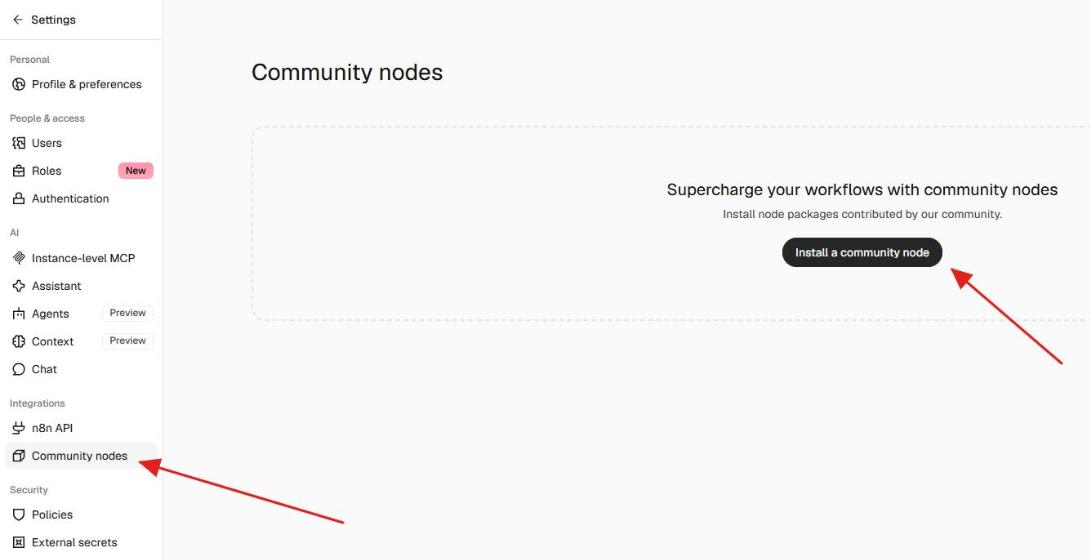
-
In the
npm Package Namefield, enter@green-api/n8n-nodes-telegram-greenapi. -
Check
I understand the risks of installing unverified code from a public sourceand click theInstallbutton.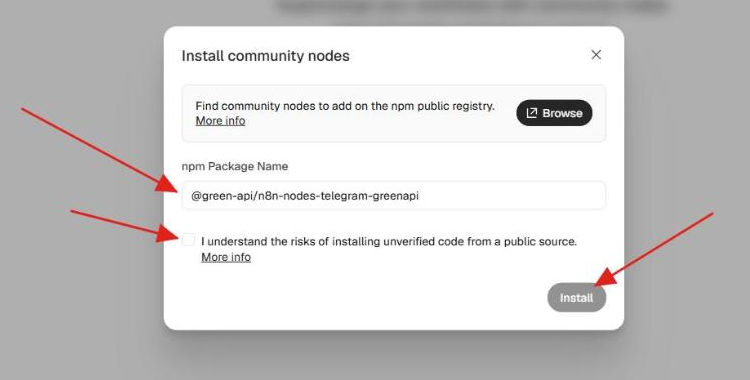
Examples of using the GREEN-API application#
How to Create a Telegram Echo Bot Using the GREEN-API in n8n