Vanilla JavaScript client#
Beta version
The functionality is in beta mode. Features are subject to change and may also work unstably. There may be additional charges for functionality in the future.
You can request access to the functionality via GREEN-API support
examples/basic-usage-vanilla-js — the same calls without a framework. This is a secondary example: it is needed to look at the library API on its own, without the application layers. If you are building a full-featured client, start with the React client — it is the reference implementation.
The example is intended for understanding the library and is not a complete solution. Everything that the page and the server exchange is visible in the Log journal right on the page, and some of the details are in the browser developer console.
To use the example, get the instance ID and the token in the console; the free "Developer" plan is suitable for testing.
1. Downloading the example#
To install the example, download the code from the GitHub repository.
Download the archive or use the command line:
git clone https://github.com/green-api/whatsapp-api-calls-client-js.git
2. Running the client#
On the command line, go to the example folder and install the dependencies:
cd whatsapp-api-calls-client-js/examples/basic-usage-vanilla-js
npm install
npm run dev
You only need to run npm install once, during the first installation.
Vite prints the address at which the development server has started — open it in the browser.
To stop the server, press Ctrl + C and then press Y.
3. Connecting to the instance#
This is what the example looks like right after starting: the connection form and the Log journal.
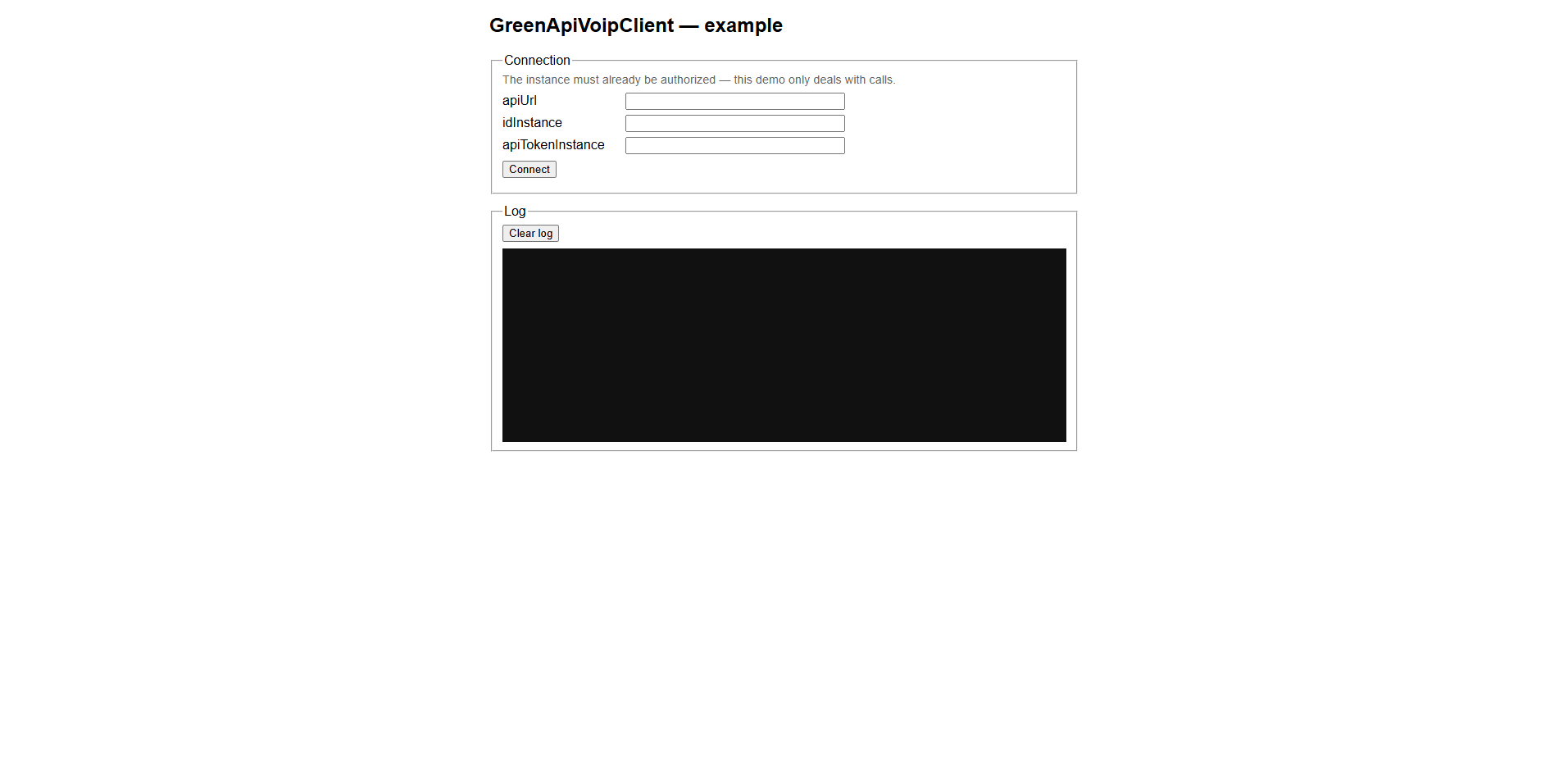
The data required for authorization is in your GREEN-API console:
apiUrlidInstanceapiTokenInstance
As apiUrl, specify the API URL of your instance — for example, https://1234.api.green-api.com. The instance itself must already be authorized in the console by QR code: the example handles calls only.
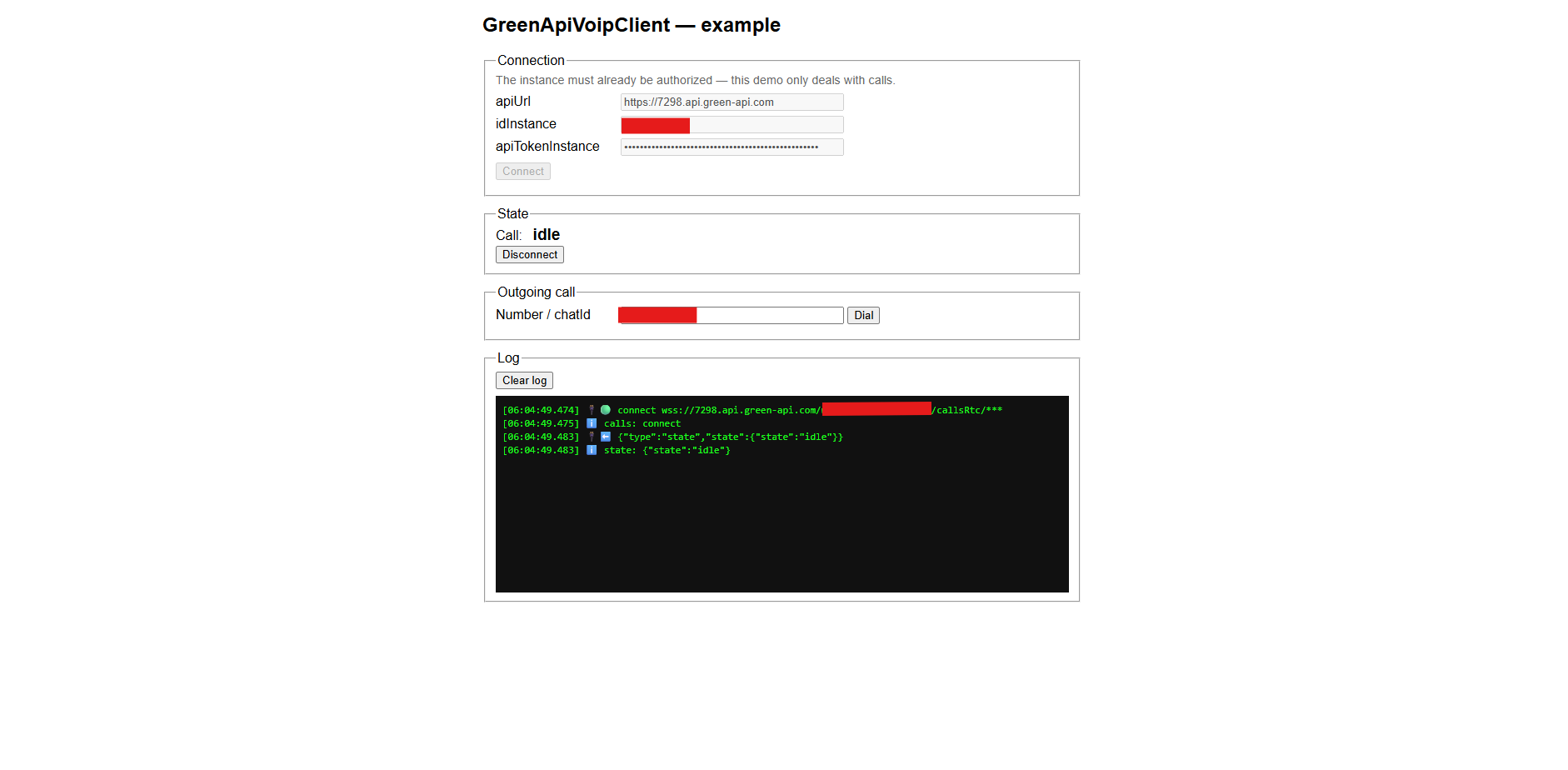
Fill in the fields and click Connect. After connecting, the State section appears with the current call state and the Disconnect button, as well as the outgoing call form. The idle state means that there is no call at the moment.
Additional information
The Log journal shows what is sent to the server and what comes back: method requests, connection messages and call states. The Clear log button clears the journal.
4. Receiving incoming calls#
After connecting, you can start receiving incoming calls.
An incoming call is indicated by the inc-call state, and the Incoming call section shows the caller ID and the Accept and Reject buttons.
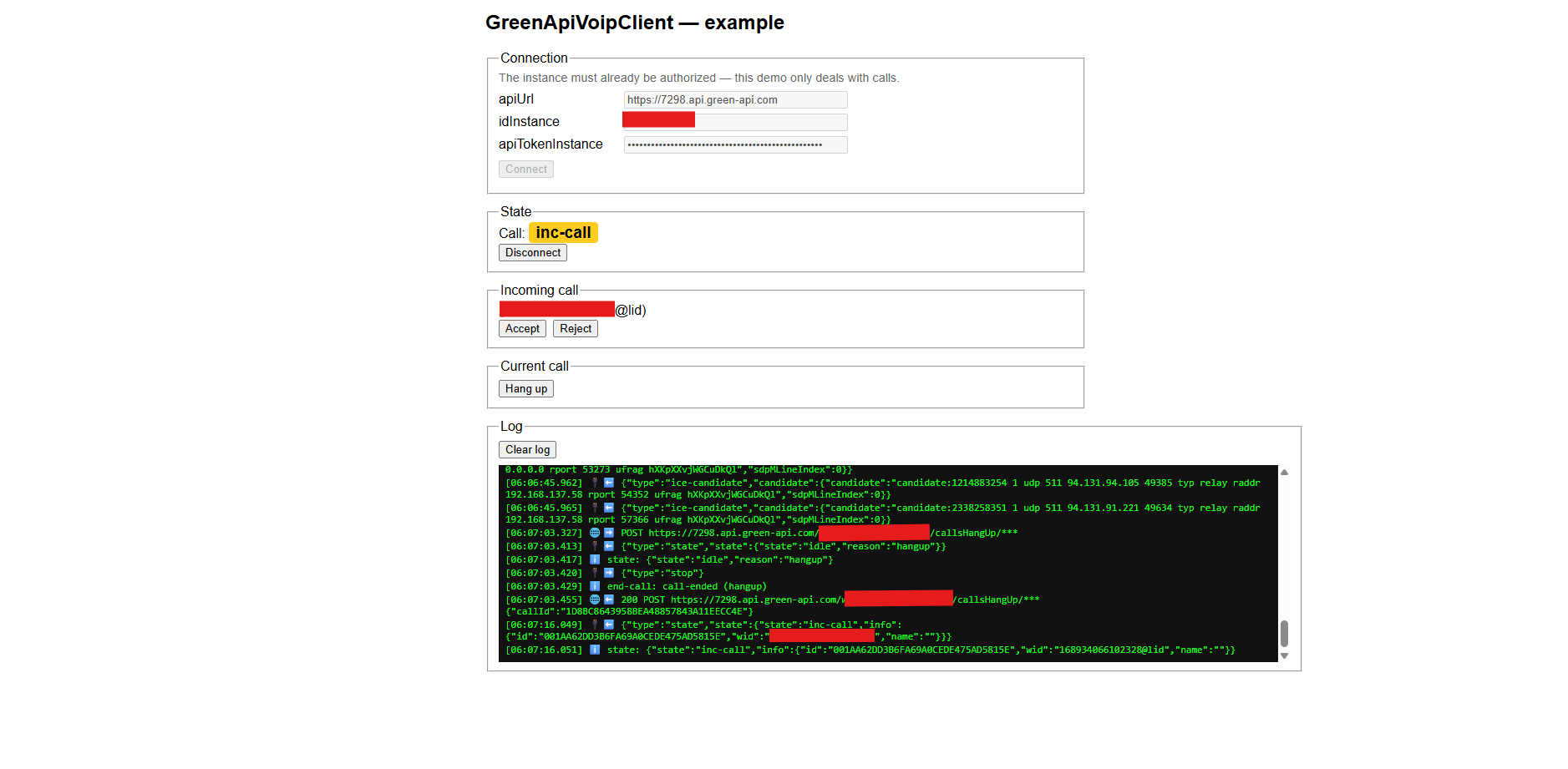
The browser may ask for permission to use your microphone to transmit your voice. You need to allow this.
To end the call, click the Hang up button in the Current call section. The connection ends for you, and the other party hears silence on the line.
When a call is rejected, it still continues to ring on the phone. This is not an error, but a specific feature. Due to the instability of VoIP technology, you may not see the incoming call notification in the browser window.
5. Making outgoing calls#
After connecting, you can start making outgoing calls.
Enter the phone number or chat ID in the Number / chatId field and click Dial. While dialing is in progress, the state in the State section is out-call.
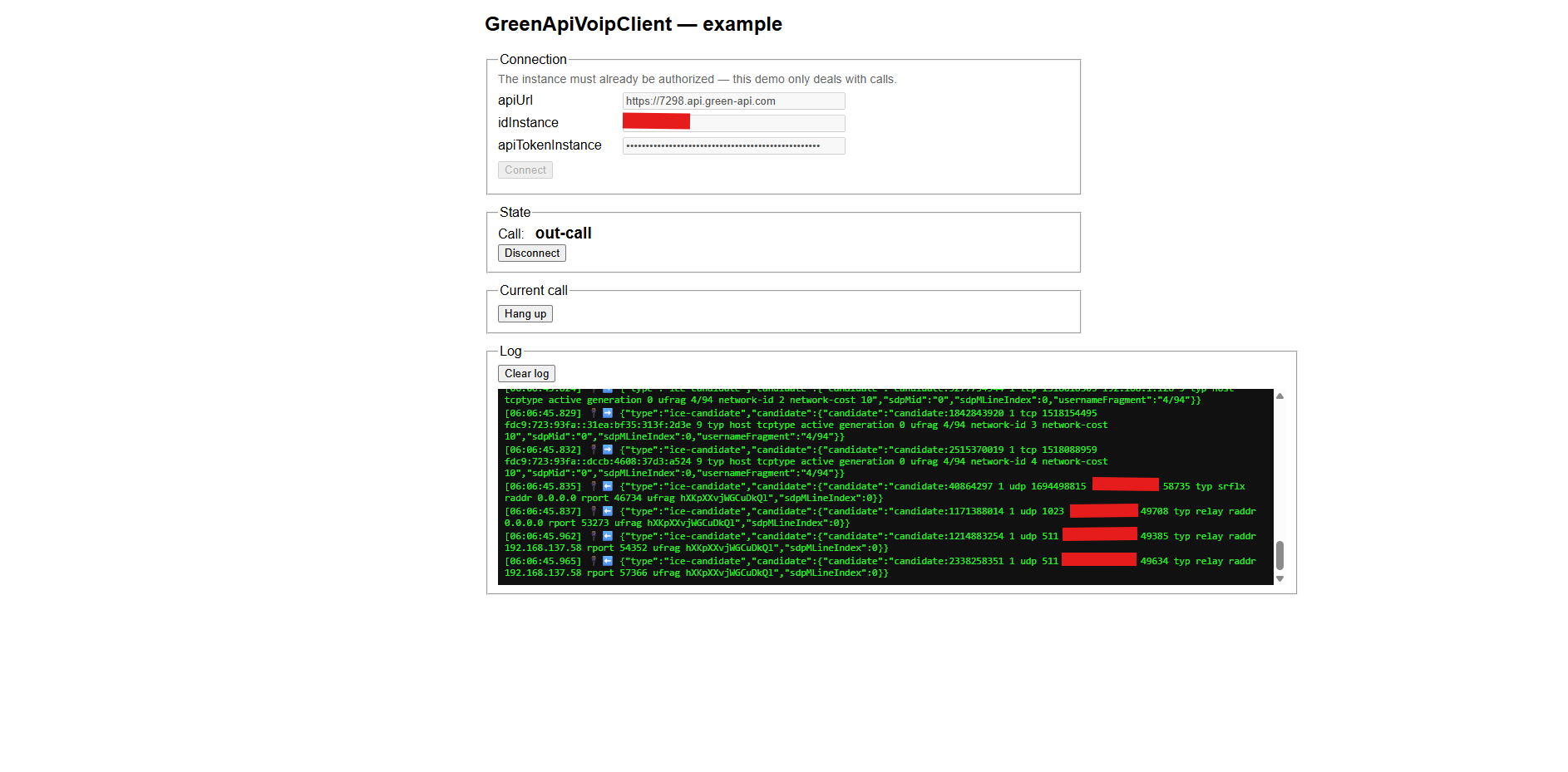
If for some reason the call did not take place, check the Log journal: it shows how the server responded.
On some phones, WhatsApp must be running in the background to receive incoming calls.
To end the call, click the Hang up button in the Current call section. The connection ends for you, and the other party hears silence on the line.