React client#
Beta version
The functionality is in beta mode. Features are subject to change and may also work unstably. There may be additional charges for functionality in the future.
You can request access to the functionality via GREEN-API support
examples/react in the library repository is a working softphone and the reference implementation for the library: everything described in the documentation is applied there in working form. This is the example to start with. You can try it without installing anything at voip.green-api.com.
To use the example, get the instance ID and the token in the console; the free "Developer" plan is suitable for testing. The instance must already be authorized by QR code — the library handles calls only.
What the example can do#
- Authorization with
idInstanceandapiTokenInstance, kept between page reloads. - Dialing by phone number — with country selection and formatting as you type — or by
@lidID when you do not have the phone number of the other party. - Contacts with avatars and search: both addresses of the other party are shown, and you can call directly from the row.
- Incoming calls: a window with the avatar and name of the caller, accepting and rejecting.
- Call screen: who you are talking to, the call duration, audio level indicators in both directions, microphone mute, hang-up.
- Call sounds: dialing tones and the incoming call ringtone — they are synthesized, the project has no audio files.
- Connection state, including reconnecting in the middle of a call.
1. Downloading the example#
To install the example, download the code from the GitHub repository.
Download the archive or use the command line:
git clone https://github.com/green-api/whatsapp-api-calls-client-js.git
2. Running the client#
On the command line, go to the example folder and install the dependencies:
cd whatsapp-api-calls-client-js/examples/react
npm install
npm run dev
You only need to run npm install once, during the first installation.
Vite prints the address at which the development server has started — open it in the browser.
To stop the server, press Ctrl + C and then press Y.
3. Entering the authorization data#
On the first run, the example opens with the Sign in form.
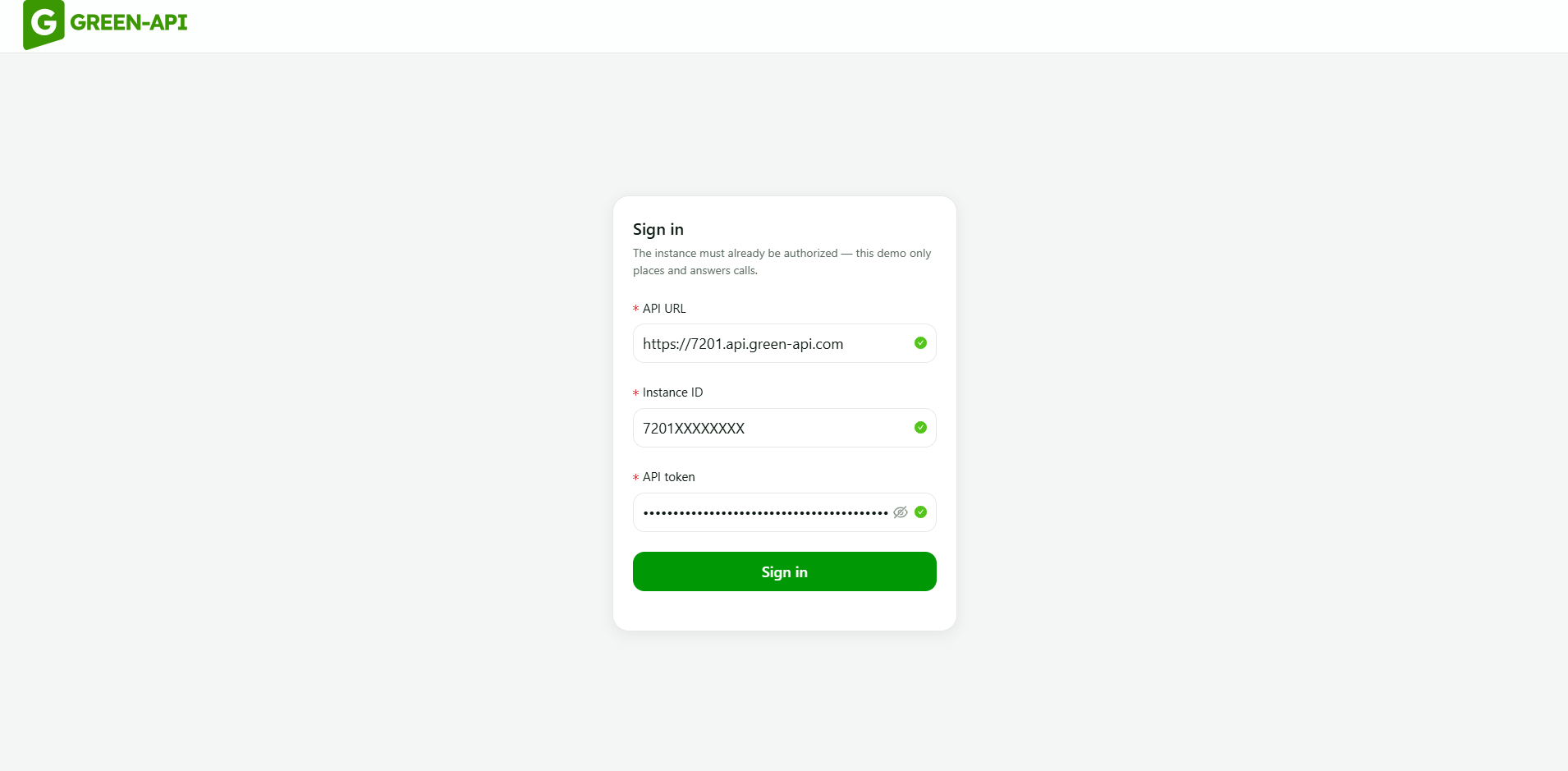
The required data is in your GREEN-API console:
API URL— the API URL of your instance, for examplehttps://1234.api.green-api.comInstance ID— the instance ID (idInstance)API token— the instance token (apiTokenInstance)
Fill in the fields and click Sign in. The example saves the entered data, so you do not need to sign in again after reloading the page.
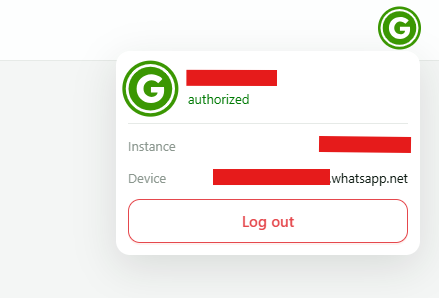
To log out of the instance, open the profile — the icon in the upper right corner of the page.

The profile window shows the instance state (authorized), its number, the device and the Log out button.
4. Receiving incoming calls#
After signing in, the application starts receiving incoming calls.
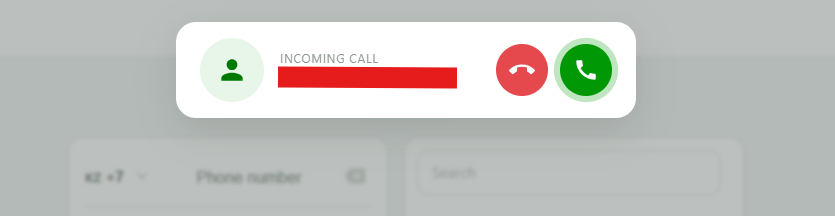
An incoming call is indicated by the Incoming call panel with the name or number of the caller: the green button accepts the call, the red one rejects it.
The browser may ask for permission to use your microphone to transmit your voice. You need to allow this.
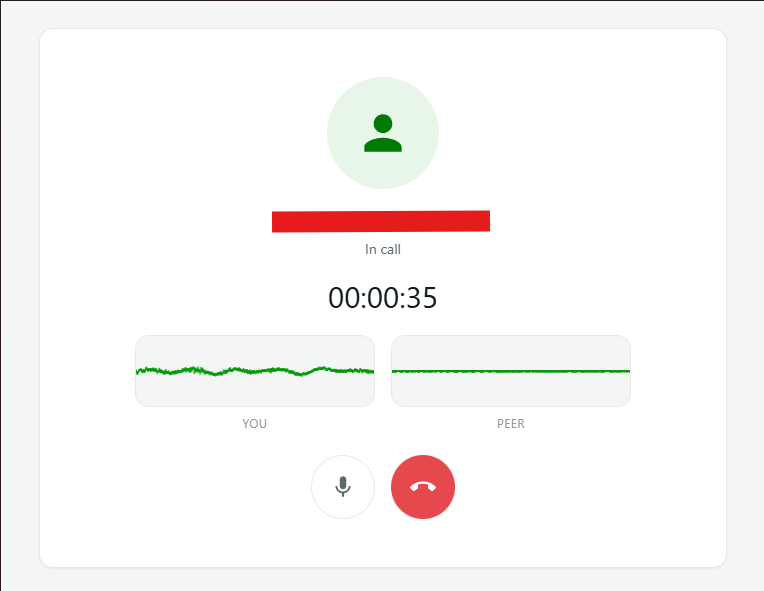
After accepting, the call screen opens: the In call state, the call timer, audio level indicators — your own (YOU) and the other party's (PEER), the microphone mute button and the red hang-up button.
Known issues and workarounds
When a call is rejected, it still continues to ring on the phone. This is not an error, but a specific feature. One of the workarounds is to answer the call and hang up immediately, in which case the call on the phone stops.
Due to the instability of VoIP technology, you may not see the incoming call notification in the browser window.
5. Making outgoing calls#
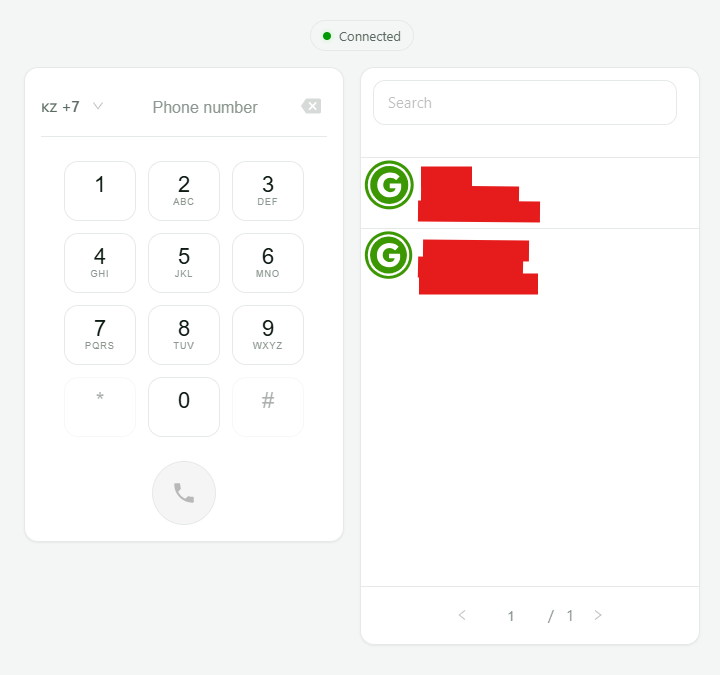
Dial the number on the keypad on the left — the country code is selected in the list next to the Phone number field — or find the contact in the contact list on the right and call directly from the row. Then click the green call button.
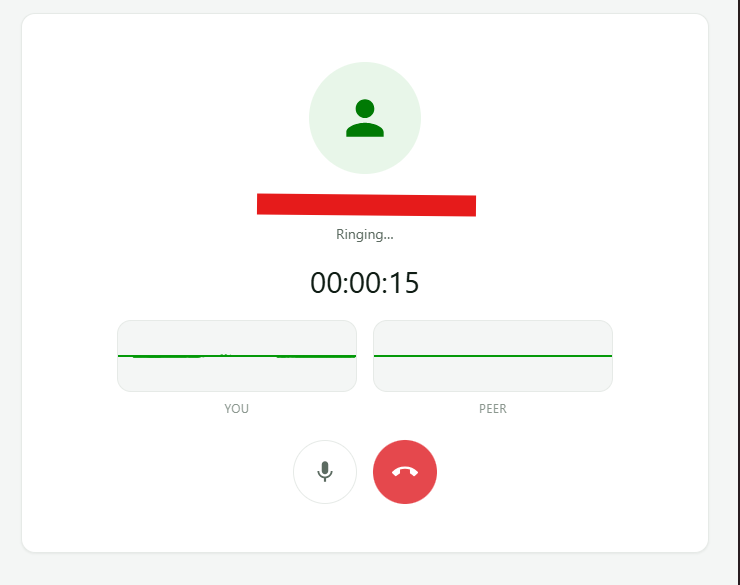
Then the call screen opens. While dialing is in progress, it shows the Ringing... state, and when the other party answers — In call. It also has the timer, audio level indicators, microphone mute and hang-up.
If the call did not take place, make sure that the connection is established — there is a Connected indicator at the top of the page for this — and that there are no errors in the developer console.
On some phones, WhatsApp must be running in the background to receive incoming calls.
How the example is built#
What to look at first, in the order of the call flow:
| File | What it contains |
|---|---|
src/voip/index.ts | The single client and connection for the entire application, as well as the latest streams and connection status — so that a component mounted later can still find them |
src/hooks/useCallsConnection.ts | The same connection as React state |
src/components/softphone.tsx | Dialing: country or @lid, formatting, keypad |
src/common/address.ts | The address model — a number and @lid are alternatives, and exactly one of them is dialed |
src/components/incoming-call.tsx | The incoming call window |
src/pages/call.tsx | The call screen: the other party, timer, indicators, microphone mute, hang-up |
src/hooks/useVoip.ts | The streams and the audio elements playing them, linked in both directions |
src/voip/ringing.ts | Dialing tones and ringtone |
Three things that are easy to get wrong#
They are not obvious from the API, and each mistake is silent — nothing crashes, it just does not work.
- Signaling first, then audio.
dial()oraccept()must complete beforestartAudioBridge(): the server rejects an audio offer that does not belong to any call. - Audio starts before the call screen appears. By the time the audio elements are rendered, the
local-stream-readyandremote-stream-readyevents have already fired. That is why the example stores the streams instead of only subscribing to the events — otherwise the call is silent. The same applies to the connection status: subscribing afterconnecthas already happened would leave the application showing "no connection" while the connection is fully alive. - Microphone mute is local, and it has to be restored. The track from
local-stream-readyis the same track that is transmitted to the other party, sotrack.enabled = falseis exactly what makes them stop hearing you. After the connection is lost in the middle of a call, the library restarts audio with a new microphone track and does not end the call itself, so the mute has to be transferred to the new track — otherwise the screen keeps showing a state that no longer exists.
For details, see the Audio transmission and How to make an outgoing call sections.
Third-party libraries#
The library itself has no runtime dependencies. The React client uses React, Redux Toolkit, React Router, Ant Design, MUI icons and libphonenumber-js.