Connecting the GREEN-API MCP server#
MCP (Model Context Protocol) — an open standard that allows AI assistants to connect to external tools and data sources. GREEN-API provides its own MCP server, allowing AI assistants to interact with the WhatsApp API directly—sending messages, managing groups, accessing chat history, and more.
These instructions will help you connect the MCP server to Claude Desktop using the GREEN-API WhatsApp service.
You can connect MCP using the /mcp or /sse protocol. The /mcp protocol is preferred for connecting.
Table of contents#
- Minimum Requirements
- Overview
- Step-by-Step Connection Setup
- Step 1: Adding a Custom MCP Server to Claude Desktop
- Step 2: Connecting an Account to the MCP Server
- Step 3: Testing the Connection
- Sending a Message
- License
- Conclusion
Minimum Requirements#
- GREEN-API account – register at the site on one of the pricing plans.
- An authorized instance in your GREEN-API console.
- Claude – register an account on the platform.
- Claude Desktop installed – download from the official website.
Overview#
This integration allows you to:
- Receive WhatsApp messages
- Send WhatsApp messages to your clients
- Use WhatsApp API by GREEN-API methods
Step-by-Step Connection Setup#
This connection method is implemented via a configured GREEN-API server that uses OAuth authentication based on the instance number. This method does not require installing additional packages on the local machine—the server is already deployed and accessible at mcp.green-api.com.
Step 1: Adding a Custom MCP Server to Claude Desktop#
- Launch the Claude Desktop app
- Open Settings: Customize → Connectors
- Click the
+icon and select Add connector
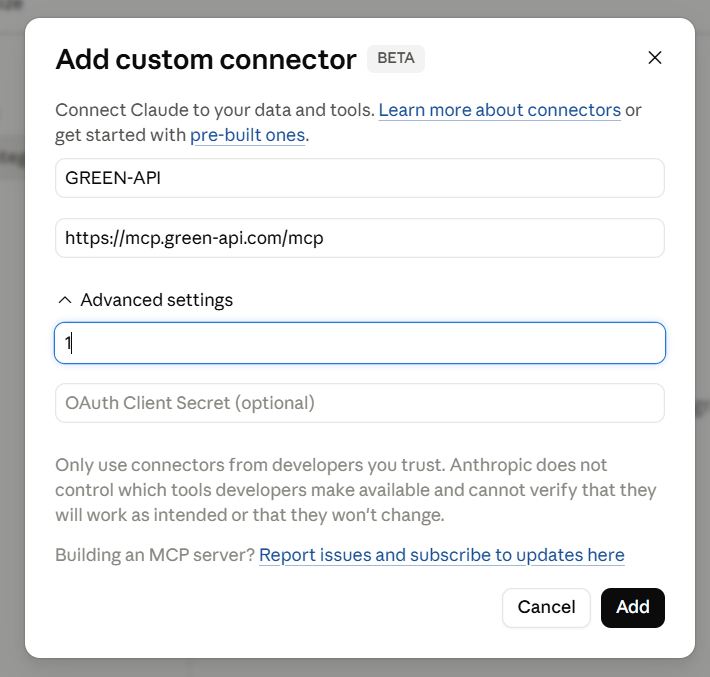
- Server Name: GREEN-API (or any other descriptive name, such as GREEN-API MCP WhatsApp Server)
- Server URL: https://mcp.green-api.com/mcp
- Advanced Settings: Instance Number (You must enter at least one character, but you will need to enter the instance name manually each time to initiate authorization)
- OAuth Client Secret: (We recommend leaving this field blank when setting up the connection; you can enter your instance token into it later during authorization)
Step 2: Connecting an Account to the MCP Server#
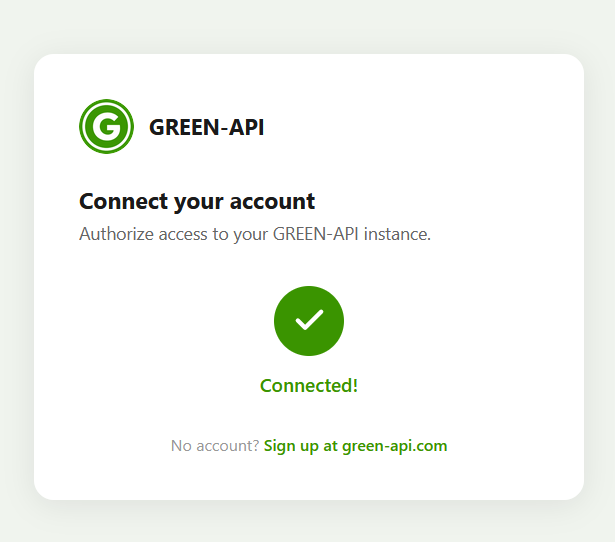
In the Connectors tab, select the GREEN-API tab and click the Connect button.
If you haven't specified the API Token, an authorization window with a prompt will open in your browser.
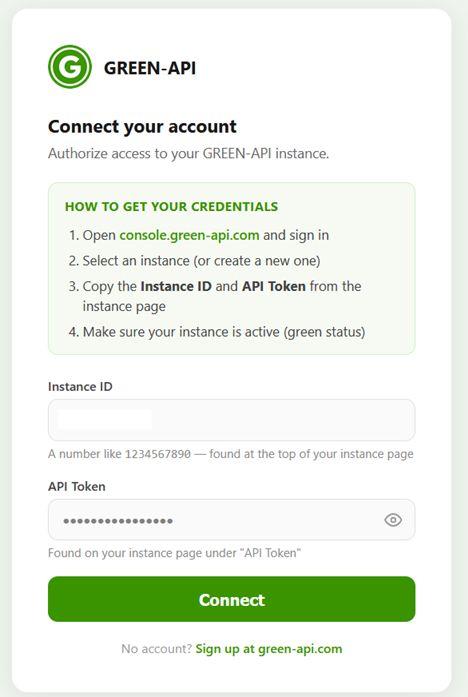
Paste the Instance ID and API Token from your GREEN-API console
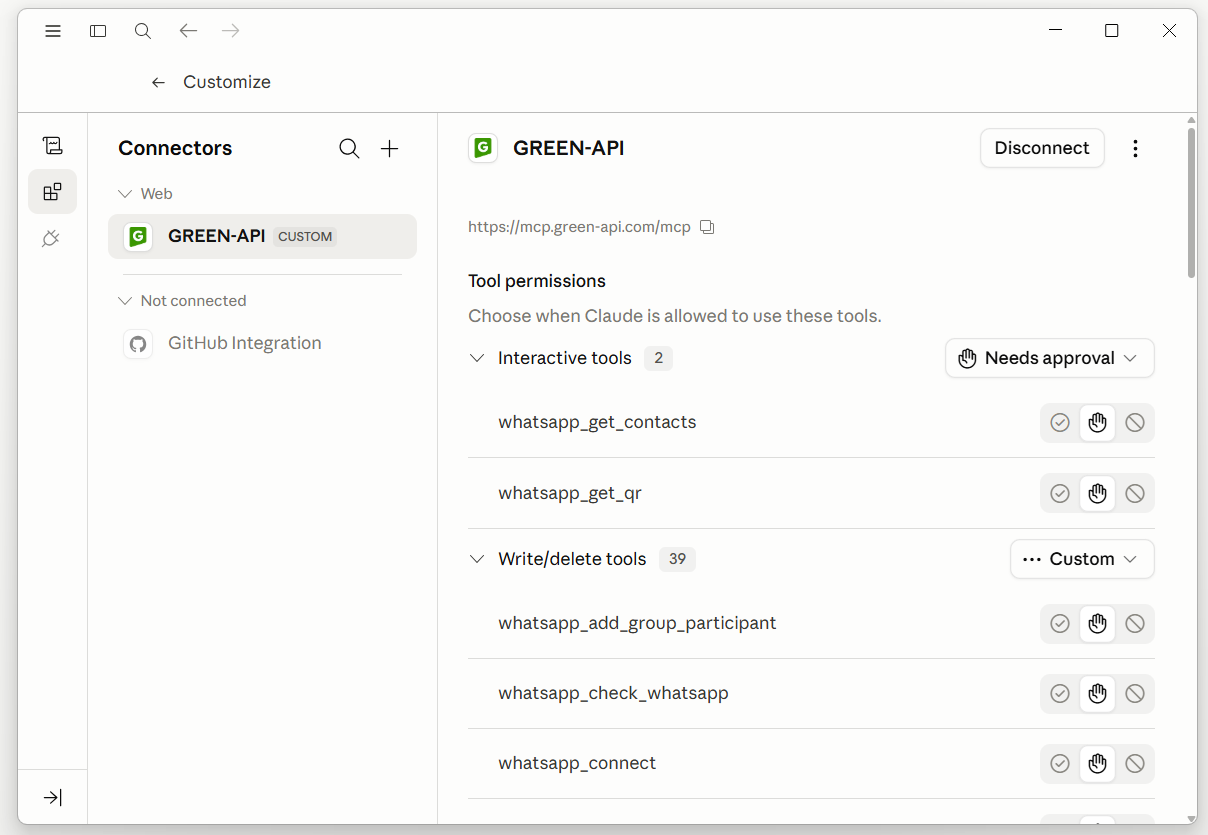
Advanced Restriction Settings
After a successful connection, you can allow or prohibit your agent from performing certain potentially unsafe methods.
Step 3: Testing the Connection#
Create a new chat with your AI agent. In the query field, ask a phrase like My WhatsApp instance state.
The AI may ask you about additional permissions and then return a phrase like WhatsApp get state. Your instance is in the ✅ authorized state — authorized and functioning properly!.
Congratulations, your MCP server is functioning properly.
Sending a Message#
Using the MCP server, you can easily send a message to a WhatsApp number. To do this, simply enter a phrase like this:
Send the phrase "Hello world" to my friend! And tell him I set up the GREEN-API MCP server in less than 10 minutes.
My friend's WhatsApp number is +71234567891
License#
Licensed under the MIT license.
Conclusion#
In this article, you learned how to easily connect the GREEN-API MCP server to work with WhatsApp in your Cloud.